

To connect your DJI Mini 4 Pro to WiFi, first power on the remote controller by pressing the power button twice. Swipe down from the top of the screen to access settings, then tap the WiFi icon. Select your desired network from the list and enter the password if required. Wait for the WiFi symbol to appear in the status bar, indicating a successful connection.

If you’re having trouble, try restarting the controller, re-entering the password, or using your phone’s hotspot as an alternative.
Connecting to WiFi enables important features like firmware updates and map downloads. For more detailed steps and troubleshooting tips, continue exploring this guide.
Powering On the Remote Controller
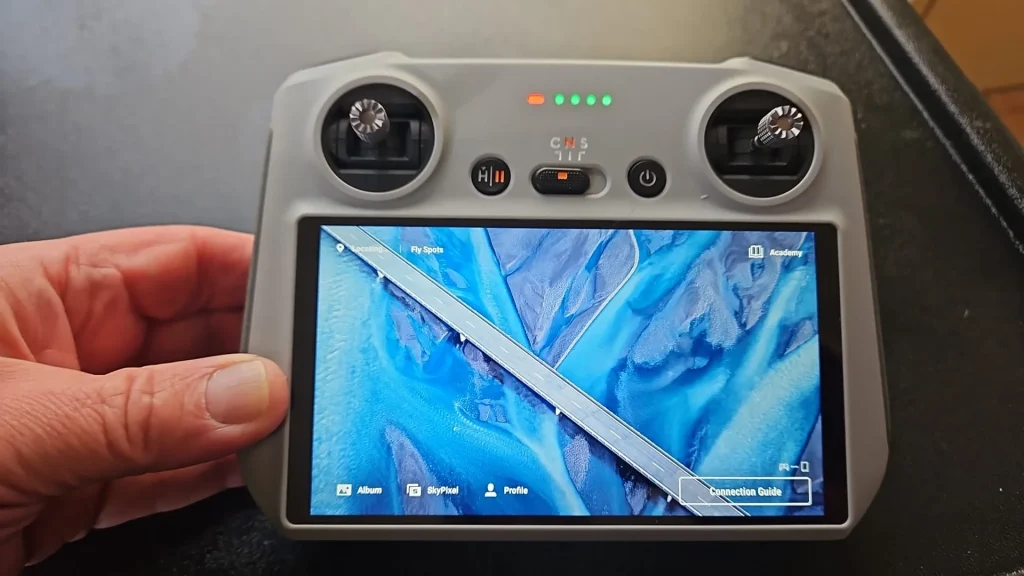
To power on your DJI RC 2 remote controller, press the power button once, then immediately press and hold it until you see the DJI logo appear on the screen. This two-step process guarantees that the controller boots up properly and is ready for use.
Once powered on, you’ll see the DJI Home screen. This is your gateway to all the controller’s functions and settings. Take a moment to familiarize yourself with the layout, as you’ll be using it frequently during your flight sessions.
The power button is typically located on the top or side of the controller, depending on your specific model. It’s crucial to remember that a single press won’t turn on the device; you must follow the press-and-hold method described earlier.
If you’re having trouble powering on the controller, check that it’s sufficiently charged. A low battery can sometimes prevent the device from starting up. If the battery is low, connect it to a power source using the provided USB-C cable and allow it to charge for a few minutes before attempting to power it on again.
Accessing WiFi Settings
Once your DJI RC 2 is powered on, you’ll need to navigate to the WiFi settings menu to establish an internet connection.
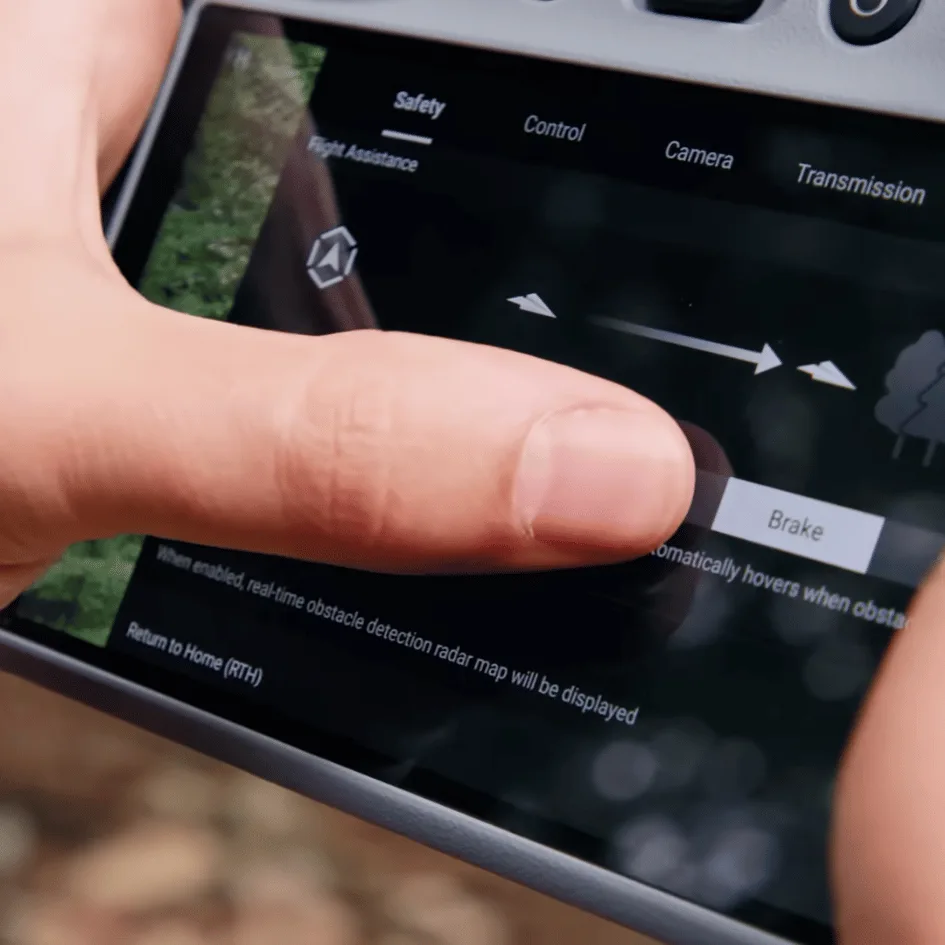
To do this, start by swiping down from the top of the screen. You’ll see the Notification shade appear. Don’t stop there; swipe down a second time to access the main settings screen.
On this screen, you’ll find various options, including the WiFi icon. If you want to quickly enable WiFi, simply tap the icon. However, if you need to set up a new connection or manage existing ones, press and hold the WiFi icon instead. This action will take you to the WiFi network screen.
Here, you’ll see a list of available networks. Choose the one you want to connect to and enter the password when prompted. Once you’ve done this, your DJI RC 2 will attempt to connect to the selected network.
Connecting to a Network
After you’ve accessed the WiFi network screen, you’ll see a list of available networks to choose from. Select your desired network by tapping on it. If it’s a secured network, you’ll be prompted to enter the password. Type in the correct password using the on-screen keyboard, then tap ‘Connect.’
While the DJI RC 2 attempts to connect, you’ll see a loading icon. Once connected, you’ll notice a WiFi symbol in the status bar at the top of the screen. If the connection fails, double-check your password and try again.
For best results, choose a strong, stable network. If you’re at home, your home WiFi is ideal. When you’re out flying, you can use your phone’s hotspot as an alternative. Remember, a reliable internet connection is indispensable for firmware updates and accessing flight maps.
Once you’ve successfully connected to a network, the DJI RC 2 will remember it and automatically connect in the future when it’s in range. This saves you time on subsequent uses. If you need to forget a network or change its settings, you can do so in the WiFi settings menu.

Benefits of WiFi Connection
Connecting your DJI Mini 4 Pro to WiFi opens up a world of benefits that’ll enhance your flying experience. First and foremost, you’ll have access to the latest firmware updates. These updates often include new features, bug fixes, and performance improvements that’ll keep your drone operating at its peak. By staying up-to-date, you’ll guarantee your Mini 4 Pro is always equipped with the latest capabilities and safety enhancements.
Another significant advantage is access to detailed flight maps. When connected to WiFi, you can view and download offline maps through the DJI Fly app. This feature is invaluable for planning your flights, as it allows you to scout locations, identify no-fly zones, and prepare for potential obstacles before you even leave home.
WiFi connectivity also enables seamless sharing of your aerial footage. You can quickly transfer photos and videos from your drone to your devices or social media platforms. This instant sharing capability is perfect for content creators who want to post their captures immediately.
Lastly, a WiFi connection provides access to DJI’s online community and support resources. You can troubleshoot issues, learn new flying techniques, and stay informed about drone regulations, all from your connected controller.
Using Mobile Hotspot
A mobile hotspot can be your lifeline when you’re out in the field with your DJI Mini 4 Pro and need an internet connection.
To use this feature, start by setting up your phone’s hotspot. Go to your phone’s settings, enable the personal hotspot feature, and set a name and password for it.
Next, power on your DJI RC 2 remote controller. Swipe down twice from the top of the screen to access the main settings. Tap and hold the WiFi icon to open the WiFi network screen. Look for your phone’s hotspot in the list of available networks and select it. Enter the password you set earlier, and you’re connected.
Using a hotspot gives you access to firmware updates, offline maps, and other features that require an internet connection. However, keep in mind that this will use your phone’s mobile data, so be aware of your data plan limits.
It’s a good idea to set up and test the hotspot connection before you head out to fly. This guarantees a smooth experience in the field. When you’re done, don’t forget to disconnect to save your phone’s battery and data.
Troubleshooting Connection Issues
Why won’t your DJI Mini 4 Pro connect to WiFi? Let’s explore some common issues and their solutions.
First, try restarting your DJI RC 2 remote controller. This simple step often resolves minor connectivity problems.
If that doesn’t work, double-check your WiFi settings. Make sure WiFi is turned on and you’re trying to connect to the right network. Verify that you’re entering the correct password. It’s easy to make a typo, so consider re-entering it from scratch.
If possible, try connecting to a different network or use your phone’s hotspot to rule out issues with a specific WiFi connection.
Ensure your DJI Mini 4 Pro and remote controller have the latest firmware. Updates can sometimes fix connectivity issues. Move away from potential sources of interference, like other electronic devices or metal objects.
If all else fails, try resetting the network settings on your remote controller. You can also try manually connecting through system settings. Go to ‘Settings’ > ‘Network & Internet’ > ‘WiFi’, select your network, and enter the password.
If you’re still having trouble, it might be time to contact DJI support for further assistance.
Alternative Connection Methods
If you’re still struggling to connect your DJI Mini 4 Pro to WiFi, don’t worry – there are alternative methods you can try. One of the most reliable options is using your smartphone’s mobile hotspot. To do this, first enable your phone’s hotspot feature and set a name and password.
Then, on your DJI RC 2 controller, access the WiFi settings and connect to your phone’s hotspot using the credentials you’ve set.
Another alternative is using a portable WiFi router. These compact devices create a local network you can connect to, even in remote areas. Simply set up the portable router, then connect your DJI RC 2 to its network.
If you’re in a pinch, you might consider using public WiFi networks. However, be cautious with this option as public networks can be less secure. Only use them for essential tasks like firmware updates, and avoid accessing sensitive information.
Lastly, if you’re near a computer with internet access, you can use a USB tethering method. Connect your DJI RC 2 to the computer via USB, then share the computer’s internet connection with the controller.
Conclusion
You’ve now learned how to connect your DJI Mini 4 Pro to WiFi using the DJI RC 2 controller.
Remember, a stable internet connection is vital for updates and accessing detailed flight maps. If you’re in a remote area, don’t forget you can use your phone’s hotspot.
Keep practicing these steps, and you’ll soon be able to connect quickly and efficiently.
With your drone connected, you’re ready to explore its full potential and capture amazing aerial footage.

