


To download videos from your DJI Mini 4 Pro, you have several options. You can directly connect the drone to your computer using a USB-C cable, then navigate to the DCIM folder to access and copy the files. Alternatively, remove the microSD card and use a card reader to transfer the videos.
For wireless downloads, use DJI QuickTransfer or the DJI Fly app on your mobile device.
If you encounter any issues, try general troubleshooting steps like updating firmware and restarting devices.
Keep exploring to discover more tips and tricks for seamless video transfers from your DJI Mini 4 Pro.
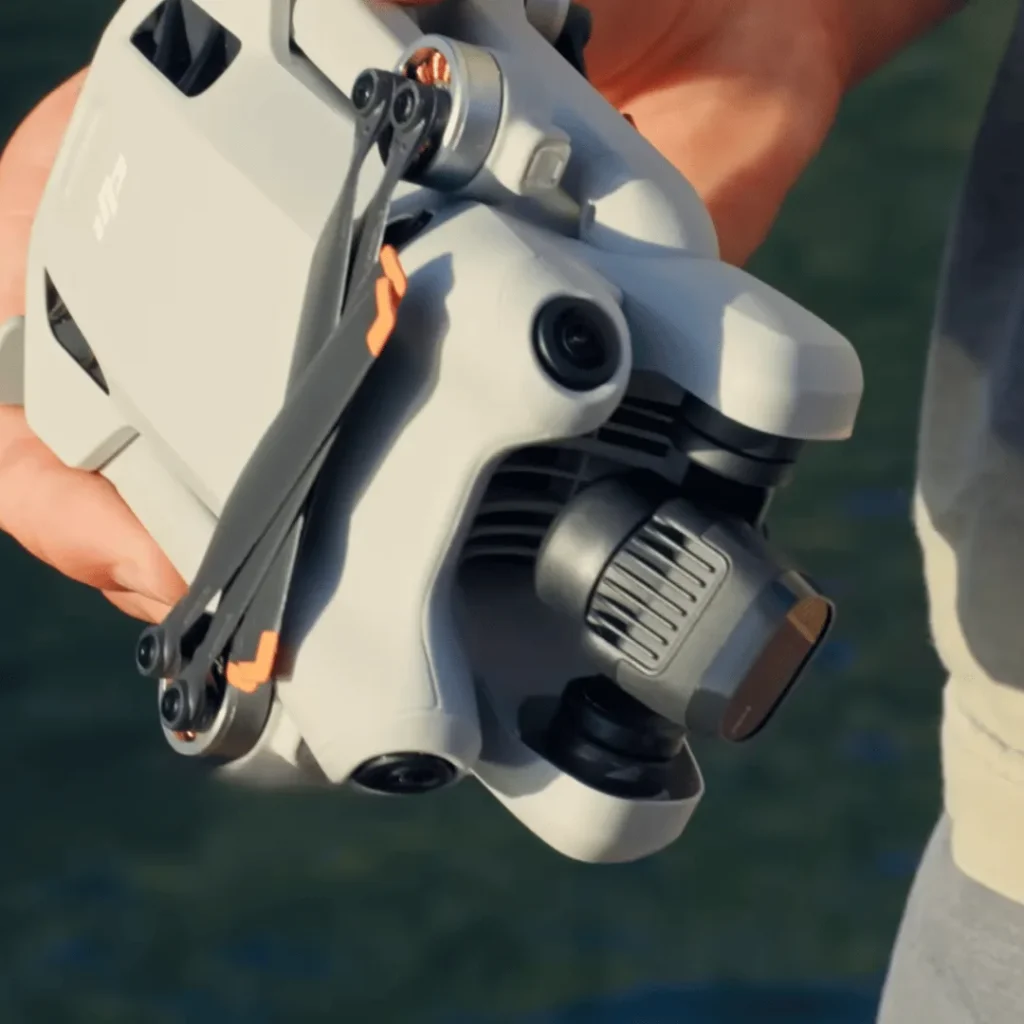
Using a USB-C Cable (Direct Connect Method)
Plug the USB-C cable into your DJI Mini 4 Pro to quickly transfer videos and photos to your computer.
Connect the other end to an available USB port on your PC or Mac. Your computer will automatically detect the drone’s internal storage and SD card, making it easy to access your files.
To locate your media, open Windows/File Explorer on a PC or Finder on a Mac. Navigate to the DCIM folder, where you’ll find all your captured content. Simply copy and paste the desired files to your computer’s storage for safekeeping and further editing.
One of the best features of this method is that you don’t need to power on your Mini 4 Pro for it to work. The direct USB-C connection allows seamless file transfer even when the drone is turned off, saving you time and conserving the drone’s battery life.
Using a USB-C cable is a straightforward and efficient way to download your videos and photos from the DJI Mini 4 Pro. With just a few simple steps, you’ll have your content safely stored on your computer, ready for your next creative project.
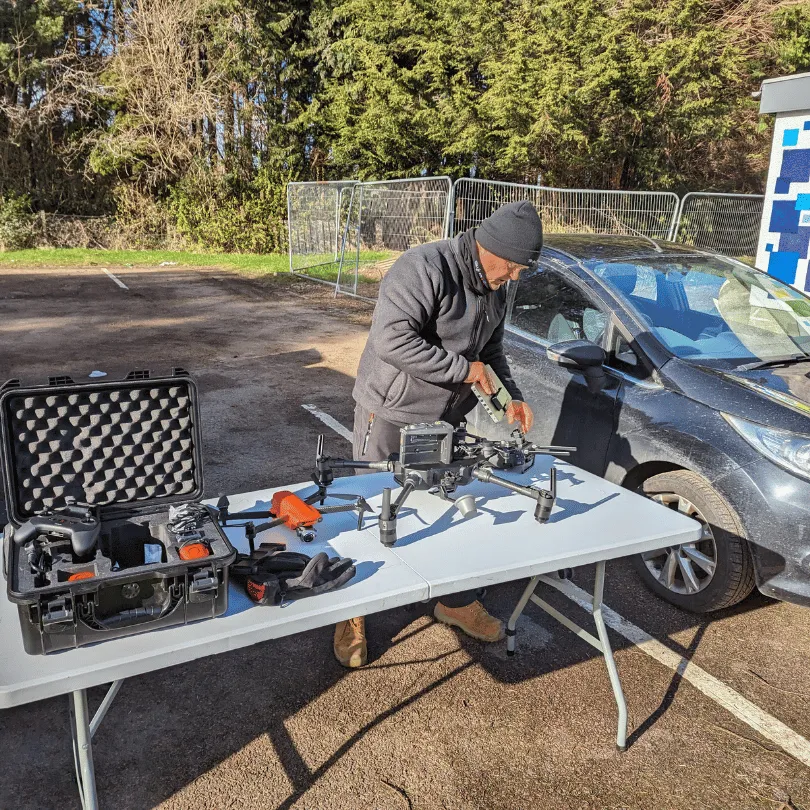
Using an SD Card Reader
Transferring your captured content from the DJI Mini 4 Pro is a breeze with an SD card reader. Start by ejecting the microSD card from your drone and placing it into the SD card reader.
Then, plug the reader into your computer’s USB slot.
Once connected, open Windows/File Explorer or Finder to locate the SD card.
Navigate to the DCIM folder, where you’ll find all your media files neatly organized.
Simply select the desired photos or videos and copy them to your computer’s hard drive.
Using an SD card reader is a quick and efficient way to download your footage without the need for cables or special software.
It’s also a great option if you want to free up space on your microSD card for more shooting.
Just remember to safely eject the card from your computer and reinsert it into your DJI Mini 4 Pro when you’re done.
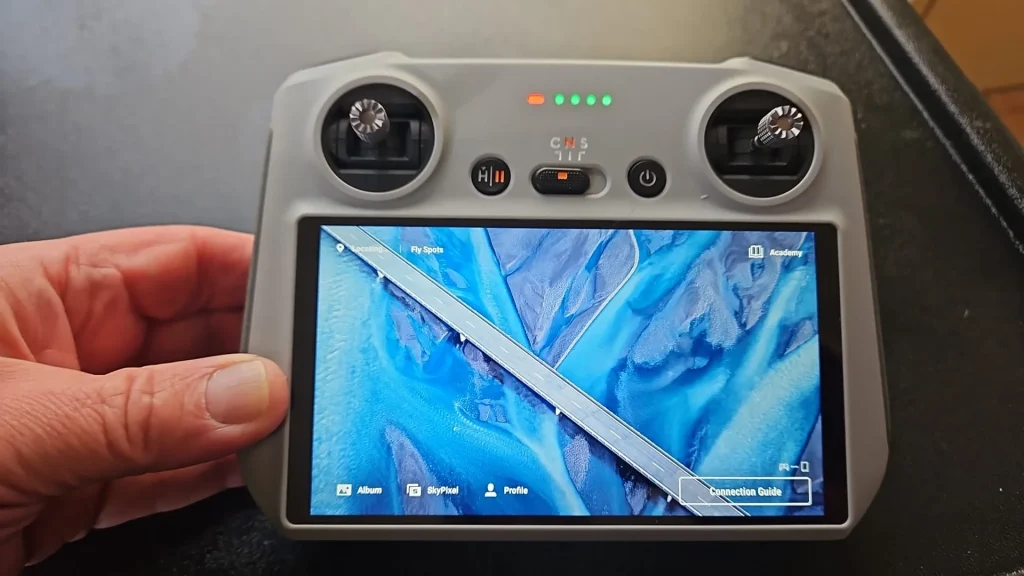
Using DJI QuickTransfer
While an SD card reader offers a convenient way to transfer your DJI Mini 4 Pro footage, DJI’s QuickTransfer feature streamlines the process even further by letting you download files directly to your mobile device.
To get started, ensure your mobile device’s WiFi and Bluetooth are on, and update your drone’s firmware and the DJI Fly app to their latest versions.
Also, check that your drone has sufficient battery power.
- Power on your DJI Mini 4 Pro and wait for it to complete its self-diagnostic test.
- Open the DJI Fly app, and tap the QuickTransfer icon.
- When prompted, join the drone’s WiFi network.
- Once connected, tap ‘View Album’ to see all the files stored on your drone.
- Select the files you want to download by tapping the checkmark in the upper right corner of each file.
- Finally, hit the download button to transfer the selected files to your mobile device.
With QuickTransfer, you can easily access and share your aerial footage on the go, without the need for additional hardware or complicated setups.
Using the DJI Fly App on Mobile Devices
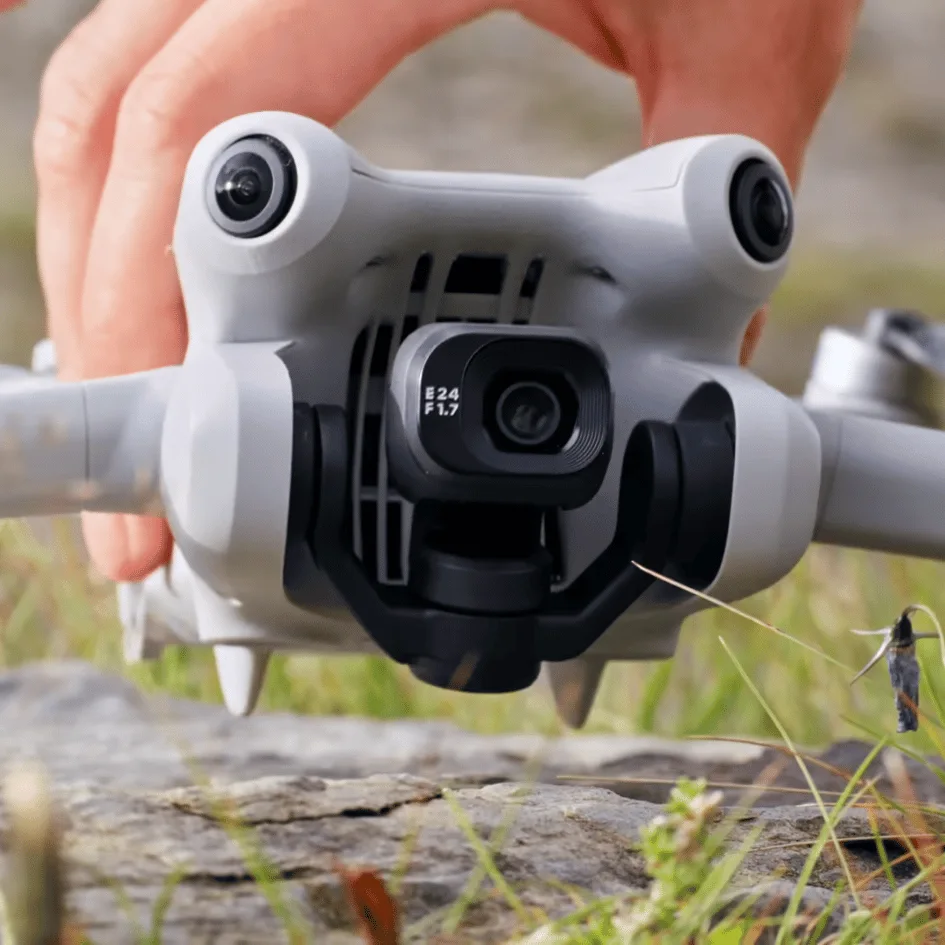
The DJI Fly app provides a seamless way to download your aerial footage directly to your mobile device.
To get started, power on your DJI Mini 4 Pro and connect it to the app.
Once you’re on the main screen, tap ‘Album’ to access your captured content.
In the Album, you can choose to view photos, videos, or all files.
To select multiple items for download, enter batch select mode by tapping the checkmark icon in the upper right corner.
Simply select the desired files and hit the download button at the bottom right.
The app will then transfer the selected photos and videos to your mobile device.
You can find the downloaded files in your device’s default photo or video app, allowing you to easily view, edit, or share your aerial masterpieces.
Troubleshooting DJI Mini 4 Pro Video Downloads
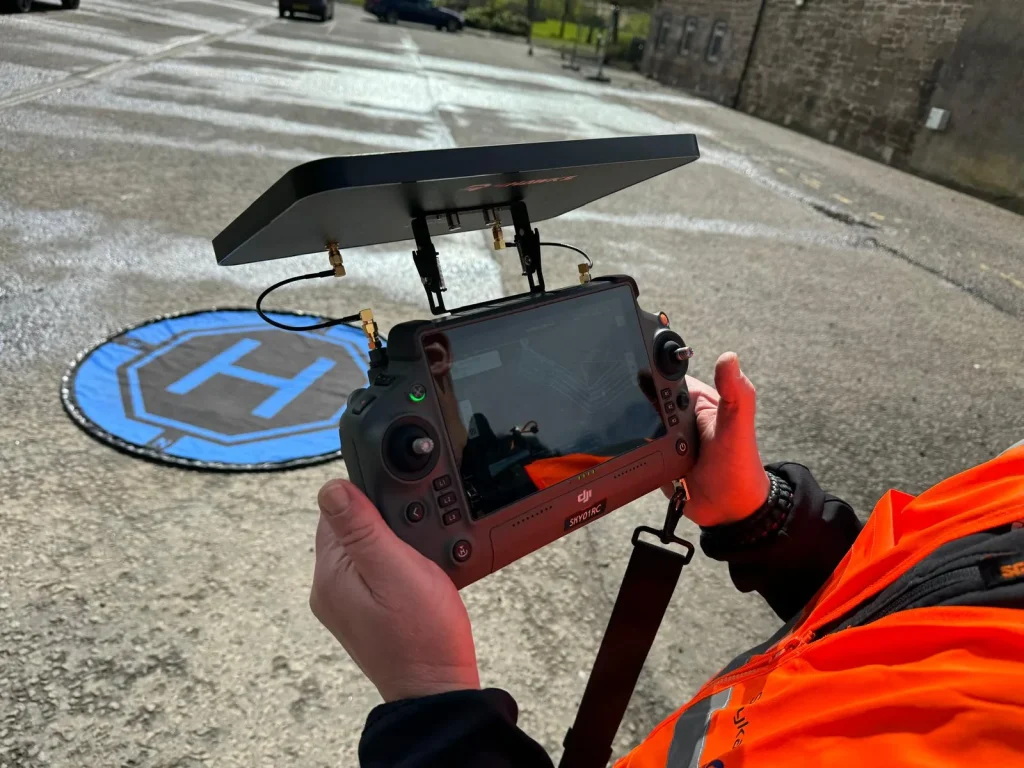
If you’re having trouble downloading videos from your DJI Mini 4 Pro, don’t worry – there are several troubleshooting steps you can try.
Whether you’re experiencing issues with the DJI Fly app’s QuickTransfer feature, struggling with codec compatibility, or facing connection problems with your Mac or iPad, we’ve got you covered.
Let’s explore some solutions to help you successfully transfer your footage.
General Troubleshooting Steps
If you’re having trouble downloading video from your DJI Mini 4 Pro, don’t worry – there are a few simple troubleshooting steps you can try.
First, make sure your drone’s firmware and the DJI Fly app are up-to-date.
Next, try restarting both your drone and your mobile device, and double-check your drone’s storage settings to ensure there’s enough space for the video files.
Check Firmware and App Updates
Outdated firmware or app versions can lead to compatibility issues when downloading videos from your DJI Mini 4 Pro.
To avoid this, make sure you’ve updated both the drone and the DJI Fly app to their latest firmware versions before attempting to download your footage.
Regularly checking for and installing updates will help ensure a smooth and trouble-free video transfer process.
Restart Devices
Resetting your devices—a simple yet effective troubleshooting step—can often resolve connectivity issues when downloading videos from your DJI Mini 4 Pro.
Restart your drone, mobile device, and computer to clear any temporary glitches or conflicts that may be hindering the transfer process.
This quick action can save you time and frustration, allowing you to swiftly access and enjoy your captured footage.

Check Storage Settings
Double-check your DJI Mini 4 Pro’s storage settings to ensure a smooth video download process.
Verify that you’re saving videos to the correct location, whether it’s the internal storage or an SD card.
If you’re using an SD card, make sure it’s properly inserted and has sufficient free space.
Selecting the right storage destination will help prevent issues when downloading your videos.
Use Correct Cable and Ports
One crucial step in troubleshooting video download issues with your DJI Mini 4 Pro is using the correct cable and ports.
Ensure you’re using the original or a high-quality USB-C cable that came with your drone.
Try different USB ports on your computer to rule out any port-related problems.
Using the right cable and functional ports can resolve many download issues.
QuickTransfer Specific Issues
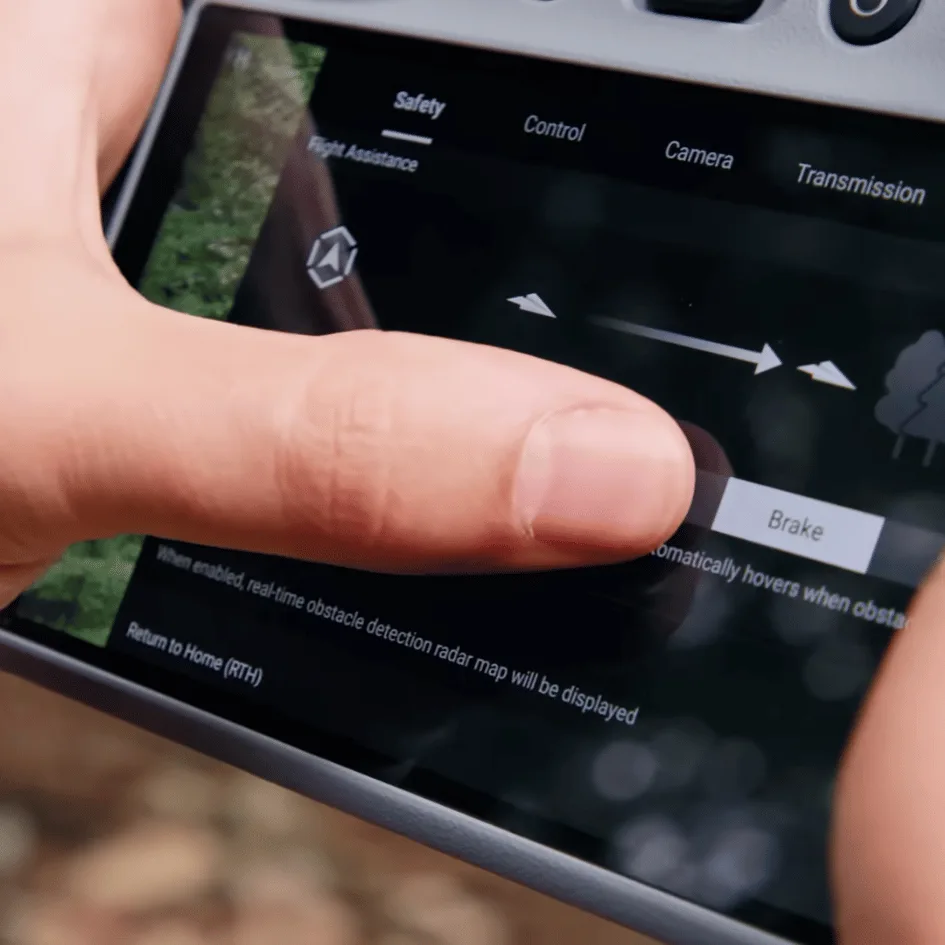
When troubleshooting QuickTransfer issues with the DJI Mini 4 Pro, you should first disable cellular data on your mobile device.
Next, make sure both Wi-Fi and Bluetooth are enabled, as QuickTransfer requires these connections to function properly.
Disable Cellular Data
Your phone’s cellular data can interfere with QuickTransfer when downloading videos from your DJI Mini 4 Pro.
To resolve connectivity issues, turn off cellular data on your mobile device before attempting QuickTransfer.
Many users have reported that disabling cellular data helps establish a stable connection between the drone and the DJI Fly app, allowing for smooth and uninterrupted video downloads.
Enable Wi-Fi and Bluetooth
For QuickTransfer to work smoothly, enable both Wi-Fi and Bluetooth on your mobile device.
QuickTransfer depends on these wireless connections to transfer videos from your DJI Mini 4 Pro to your phone or tablet.
If you’re having trouble with QuickTransfer, double-check that Wi-Fi and Bluetooth are switched on in your device settings.
This ensures a stable link between the drone and your device.
Clear App Cache
If you’re still experiencing issues with QuickTransfer after enabling Wi-Fi and Bluetooth, try clearing the DJI Fly app’s cache.
To do this, open the app and go to Profile > Settings.
From there, you’ll see an option to clear the app cache.
Clearing the cache can help resolve app-related problems and improve QuickTransfer’s performance when downloading videos from your DJI Mini 4 Pro.
Using SD Card Reader
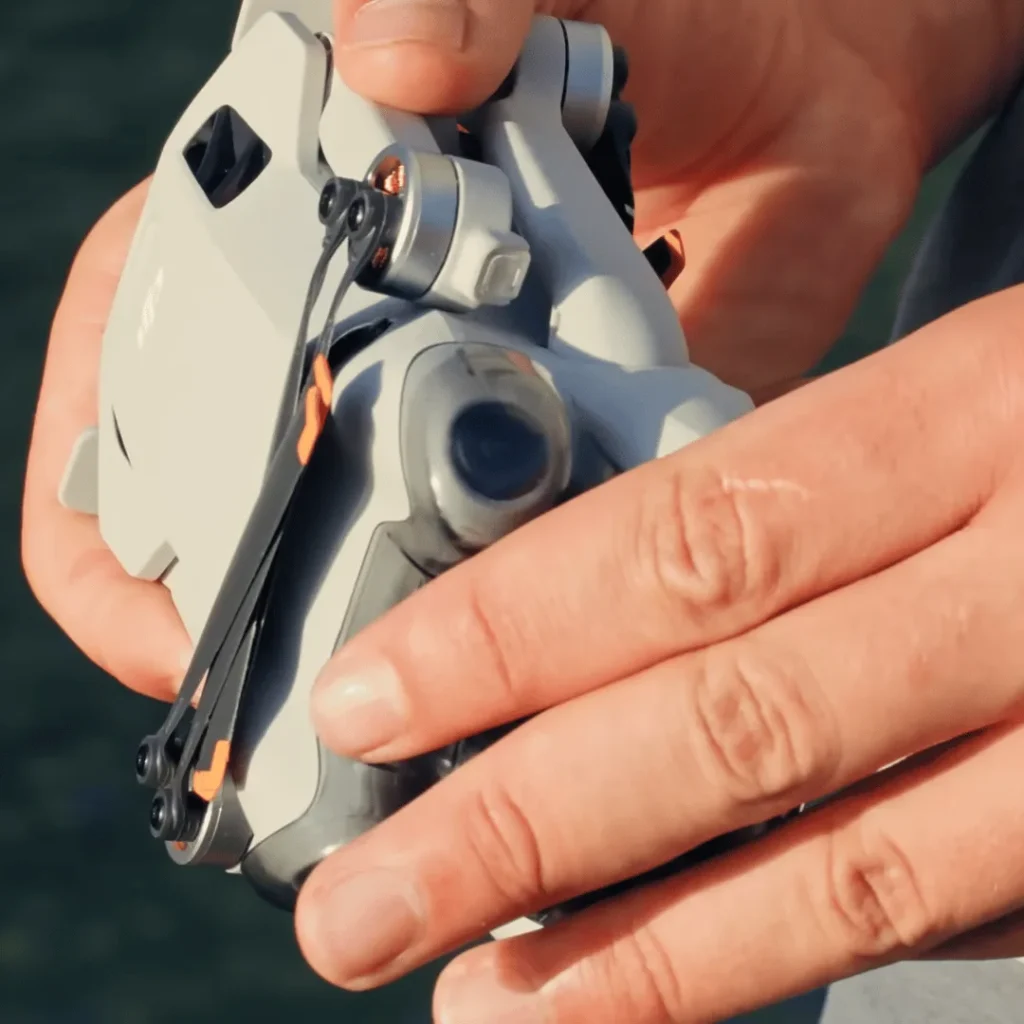
If you’re having trouble with QuickTransfer, you can try using an SD card reader to access your DJI Mini 4 Pro’s video files directly.
First, make sure your SD card reader is compatible with the type of SD card used by your drone.
Then, simply remove the SD card from your drone, insert it into the reader, and manually transfer the desired video files to your computer.
Check SD Card Compatibility
Always use a high-speed, UHS-I Speed Grade 3 or above microSD card when downloading videos from your DJI Mini 4 Pro to avoid compatibility issues.
Lower-speed cards may struggle to handle the high-resolution video data, leading to playback issues or failed downloads.
Double-check your microSD card’s speed grade before attempting to transfer footage to ensure smooth and successful video downloads.
Manually Transfer Files
When your computer doesn’t automatically detect the microSD card from your DJI Mini 4 Pro, you can manually transfer the video files using an SD card reader.
If you’re on a Windows PC, use File Explorer to locate the SD card and copy the files.
On a Mac, use Finder instead.
This manual method ensures you can access your footage even if auto-detection fails.
Codec Issues
If you’re having trouble playing the downloaded DJI Mini 4 Pro videos, the issue might be related to the video codec.
Check the codec of the video files to ensure they’re compatible with your media player.
If needed, try using a different media player that supports the specific codec used by the DJI Mini 4 Pro.
Check Video Codec
To troubleshoot video download issues with your DJI Mini 4 Pro, check that the codec used for recording is compatible with your playback device.
The Mini 4 Pro supports H.264 and H.265 codecs.
If you’re having trouble playing H.265 video, try switching the drone’s recording settings to H.264.
Ensure your device and software can handle the selected codec for smooth playback.
Use Compatible Media Players
Your video’s codec might be incompatible with the default media player on your device, so try opening the file with a more versatile program like VLC.
VLC supports a wide range of codecs, ensuring smooth playback of your DJI Mini 4 Pro videos.
If you’re still experiencing issues, consider converting the video to a more compatible format using video conversion software.
Connection Issues with Mac/iPad
If you’re having trouble connecting your DJI Mini 4 Pro to your Mac or iPad, try using Finder instead of the Photos app to access the drone’s SD card.
You may also need to rename the SD card to something simple, like ‘DJI_Card,’ for your computer to recognize it.
These steps should help resolve any connection issues you’re experiencing.
Use Finder Instead of Photos App
Connect your DJI Mini 4 Pro directly to your Mac using the USB-C cable that came with your drone, and access the drone’s microSD card via Finder to bypass the Photos app.
This method allows you to browse and copy the video files directly, without relying on the Photos app.
It’s a simple and effective solution for transferring your drone footage.
Rename SD Card
Renaming the SD card can resolve connection issues when transferring videos from your DJI Mini 4 Pro to a Mac or iPad.
Ensure you name the card using a simple, recognizable name like ‘SD_Card.’
Also, check that your video file names follow the expected format.
These steps can help your device recognize the SD card and files, enabling smoother video transfers.
Conclusion
You now have several options for downloading videos from your DJI Mini 4 Pro. Whether you prefer the direct USB-C connection, an SD card reader, DJI’s QuickTransfer software, or the DJI Fly app on your mobile device, you can easily transfer your aerial footage to your computer.
If you encounter any issues during the download process, refer to the troubleshooting tips.
Start enjoying and editing your DJI Mini 4 Pro videos today!

