

To format your SD card on the DJI Mini 4 Pro, you’ll need to use the DJI Fly app. First, power on your drone and remote controller. Open the app and access the settings menu. Navigate to the ‘Camera’ tab and find the ‘Storage’ section. Select the ‘Format’ option next to the SD card setting and confirm the process.

This will erase all existing data, so back up important files beforehand. If you encounter issues, you can also format the card using your computer.
Regularly formatting your SD card helps maintain optimal performance and resolve common errors. There’s more to learn about file systems and best practices for your Mini 4 Pro.
Formatting SD Card Using DJI Fly App
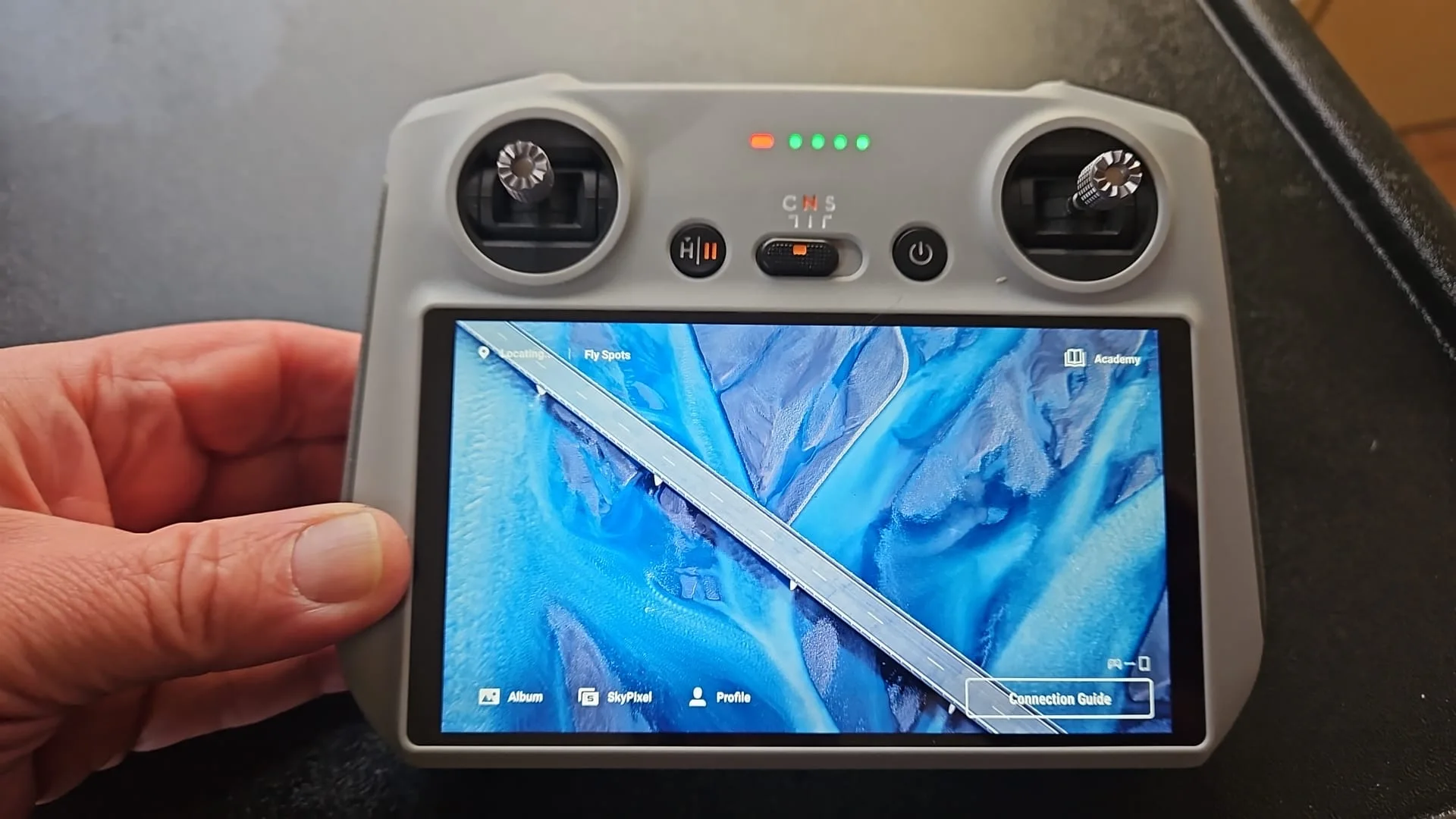
To format your SD card using the DJI Fly app on your DJI Mini 4 Pro, you’ll need to follow a few simple steps within the app’s settings.
This process ensures your SD card is properly prepared for use with your drone, optimizing its performance and storage capabilities.
- First, make sure both your DJI Mini 4 Pro drone and remote controller are powered on.
- Once they’re up and running, open the DJI Fly app on your controller.
- You’ll notice three dots (…) in the top right corner of the screen – tap on these to access the settings menu.
- Within the settings menu, navigate to the ‘Camera’ tab.
- As you scroll down, you’ll find a section labeled ‘Storage’.
- Here’s where you’ll initiate the formatting process.
- Look for the ‘Format’ option next to the SD card setting and tap on it.
- The app will prompt you to choose between formatting the SD card or the internal storage.
- Select ‘SD Card’ to proceed.
- To ensure you don’t accidentally erase important data, the app will ask for confirmation.
- Tap ‘Format’ once more to begin the process.
It’s important to note that formatting your SD card will erase all existing data, so make sure you’ve backed up any important files before proceeding.
This step is crucial for maintaining your drone’s performance and preventing potential issues with file storage or retrieval.

Formatting Without DJI Fly App
While using the DJI Fly app is the preferred method, you’ve got two alternative ways to format your SD card for the DJI Mini 4 Pro without the app.
You can format it directly on your computer, whether you’re using Windows or Mac.
To format on a Windows PC, start by inserting the SD card into your computer’s card reader or an external one. Open File Explorer, right-click on the SD card, and select ‘Format’. For cards 32GB or smaller, choose FAT32 as the file system. If your card is larger than 32GB, opt for exFAT instead.
You can name the card if you’d like, perhaps something like ‘DJI_MINI4PRO’. Then, click ‘Start’ to begin the formatting process.
On a Mac, the process is similar. Insert the card, open Finder, right-click on the SD card, and select ‘Erase’. Choose the appropriate file system based on your card’s capacity, name it if desired, and click ‘Erase’ to format.
Remember, formatting will erase all data on the card, so back up any important files before you begin. It’s crucial to double-check that you’ve selected the correct drive to avoid accidentally formatting the wrong device.
While formatting on a computer works, it’s a good idea to also format the card in the drone using the DJI Fly app afterward. This ensures full compatibility with your DJI Mini 4 Pro.
Keep in mind that this drone requires a UHS-I Speed Grade 3 or higher microSD card to handle its high-resolution videos and photos.
Recommended File System Format
Now that you know how to format your SD card, let’s focus on the recommended file system format for the DJI Mini 4 Pro. Choosing the right format is crucial for optimal performance and compatibility with your drone.
For the DJI Mini 4 Pro, the recommended file system format depends on the capacity of your SD card.
If you’re using a card with 32GB or less storage, you should format it to FAT32. This format is widely compatible and works well with smaller capacity cards.
However, if you’re using a larger capacity SD card—anything above 32GB—you’ll need to format it to exFAT. This file system is designed to handle larger file sizes and storage capacities, making it ideal for high-capacity SD cards.
It’s important to follow these recommendations to ensure your DJI Mini 4 Pro can read and write data to the SD card efficiently. Using the wrong file system could lead to issues like slower write speeds, recording errors, or even data loss.
When you’re formatting your SD card, make sure to select the appropriate file system based on its capacity. If you’re using the DJI Fly app to format the card, it should automatically choose the correct file system.
However, if you’re formatting the card on your computer, you’ll need to manually select either FAT32 or exFAT, depending on your card’s size.
Reasons for Formatting Mini4 Pro SD Card
Understanding why you’d need to format your DJI Mini 4 Pro’s SD card is crucial for maintaining your drone’s performance and reliability. There are several key reasons why formatting your SD card can be beneficial or even necessary.
Firstly, if you’ve just purchased a new SD card for your Mini 4 Pro, formatting it’s an essential first step. This process prepares the card for use with your drone, ensuring optimal compatibility and performance. It’s a simple yet critical task that shouldn’t be overlooked.
Another common scenario where formatting becomes necessary is when you encounter error messages such as ‘SD card unavailable’ or ‘File system error’.
These issues can prevent you from recording footage or accessing your stored data. Formatting the card often resolves these problems, allowing you to continue using your drone without interruption.
You might also want to format your SD card to clear all data and free up space. This is particularly useful if you’ve accumulated a large amount of footage and want to start fresh.
It’s a quick way to wipe the slate clean and ensure you have maximum storage capacity for your next flight.
Lastly, regular formatting can help maintain the overall health and performance of your SD card. It ensures that the file system remains optimized for use with your DJI Mini 4 Pro, potentially reducing the risk of data corruption or read/write errors.
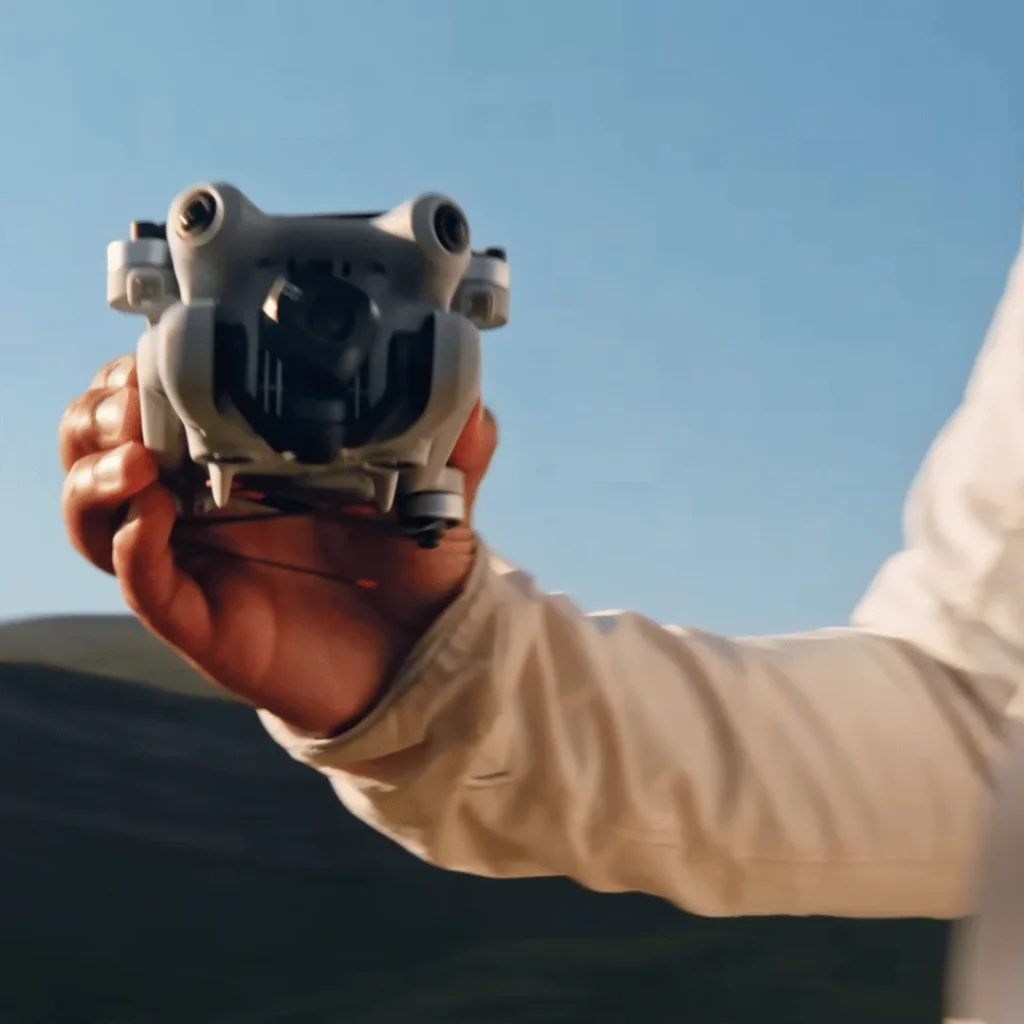
Precautions and Best Practices
Before you format your DJI Mini 4 Pro’s SD card, there are several crucial precautions and best practices you should follow to ensure a smooth process and protect your data.
This step is essential as the formatting process will erase all data on the card.
First and foremost, always back up your important files before formatting. You don’t want to lose any valuable footage or photos, so take the time to transfer them to a secure location.
When you’re ready to format, make sure both your drone and controller are powered on. However, it’s critical that you don’t attempt to format the SD card while the drone is in flight, as this could lead to potential issues or data loss.
This ensures proper communication between the devices during the process.
For optimal compatibility, use the DJI Fly app to format your SD card rather than a computer. If you encounter any issues, however, you can try formatting the card using a computer as a troubleshooting step.
This approach helps ensure that the card is formatted correctly for your Mini 4 Pro.
To maintain peak performance, it’s a good practice to format your SD card regularly. This simple step allows you to verify that the card is functioning correctly and ready for your next flight.
This helps prevent potential file system errors and keeps your card operating smoothly.
After you’ve completed the formatting process, take a moment to capture a test photo or video.
Conclusion
You’ve now learned multiple ways to format your DJI Mini 4 Pro’s SD card. Whether you use the DJI Fly app or format without it, remember to back up your data first.
Always use the recommended file system format for optimal performance. Regularly formatting your card helps maintain your drone’s smooth operation and prevents potential issues.
By following these guidelines and best practices, you’ll ensure your Mini 4 Pro is always ready for your next aerial adventure.

