

To live stream from your DJI Mini 4 Pro, you’ll need the drone, a compatible remote controller, and the DJI Fly app. Ensure everything’s charged and updated. Connect your mobile device to the controller and launch the app. In the Transmission tab, select RTMP and input your streaming platform details.
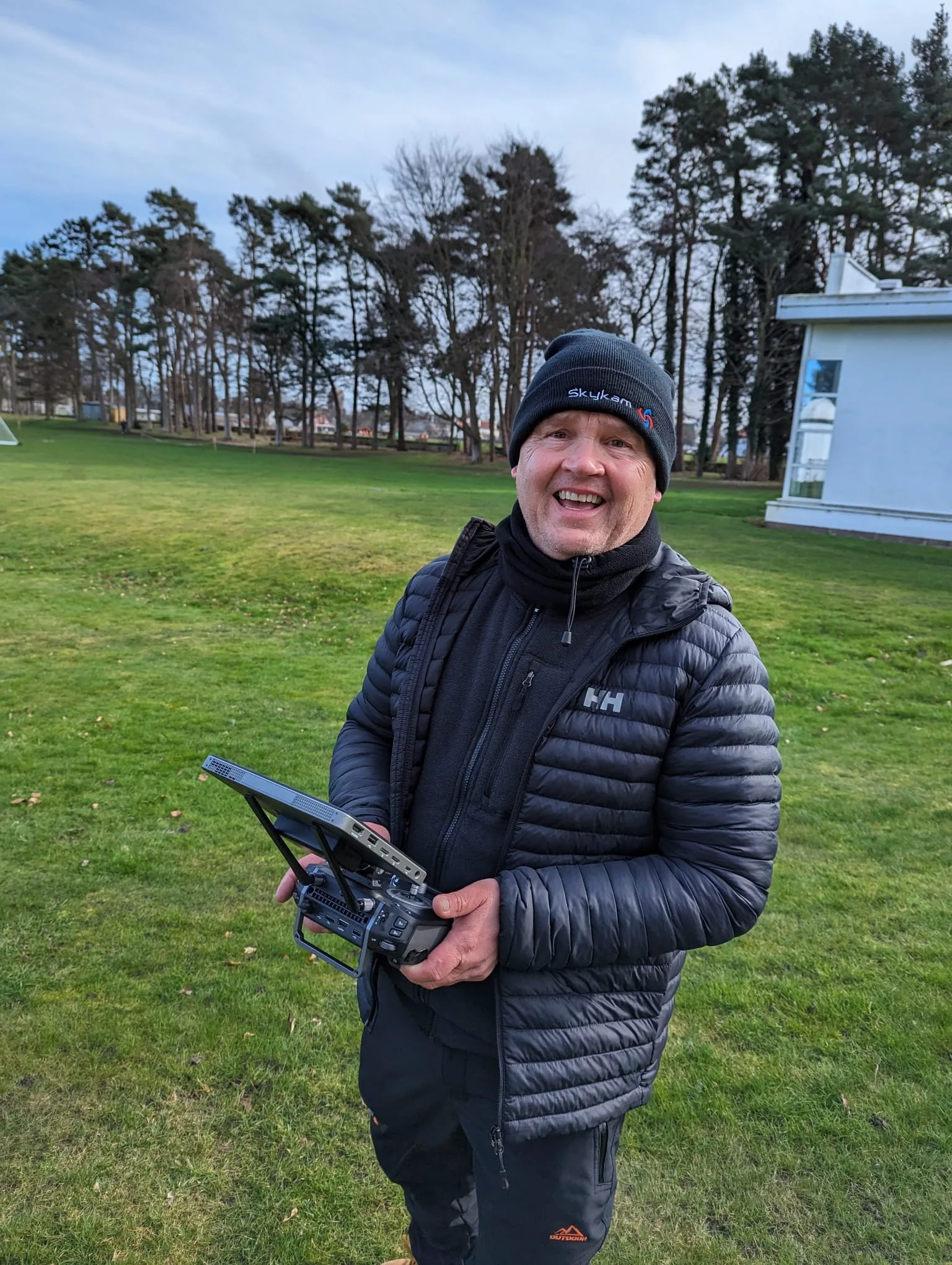
Configure resolution and bitrate settings.
Tap ‘Start’ to begin streaming, and monitor your connection throughout.
When finished, end the stream via the app’s notification. Remember to stay within legal flying limits and watch for obstacles.
With these basics, you’re ready to take your aerial content to new heights.
Equipment and Software Requirements
To live stream from your DJI Mini 4 Pro, you’ll need several key pieces of equipment and software.
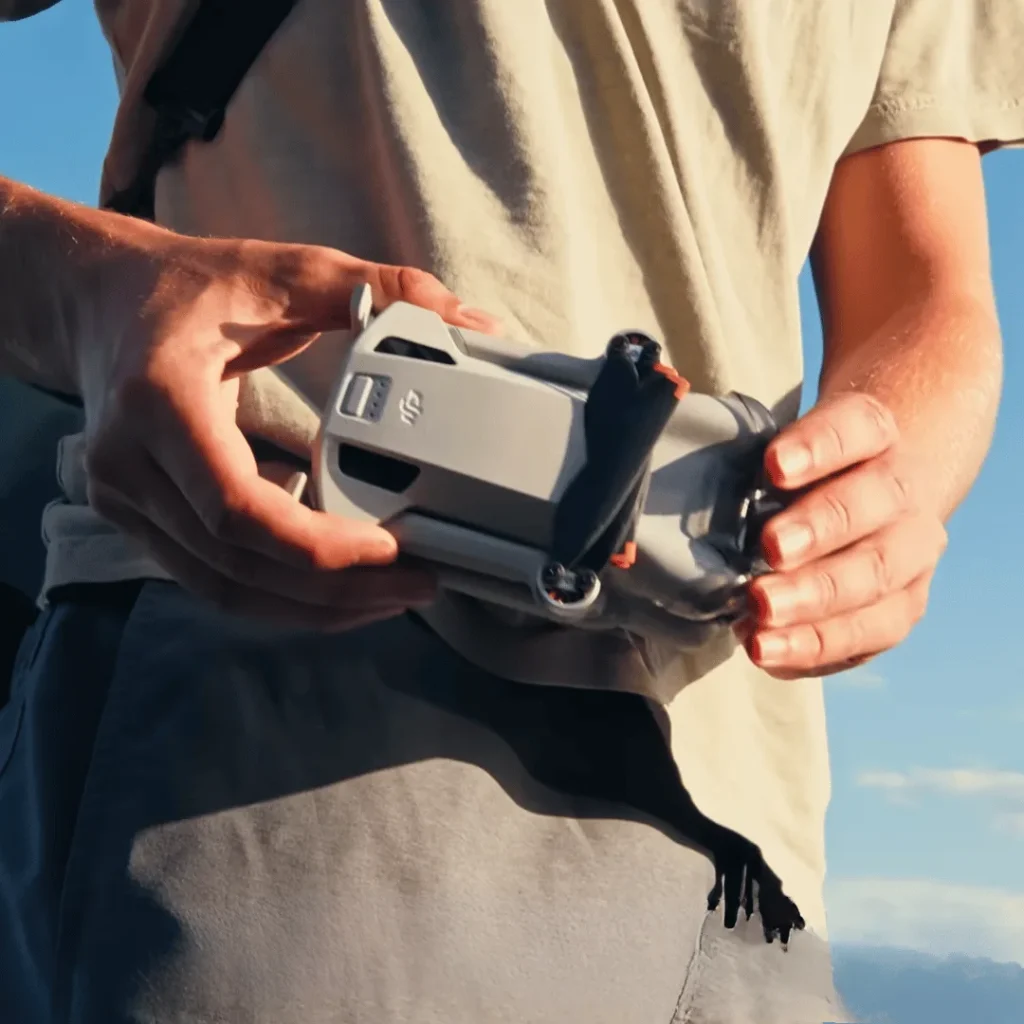
First and foremost, ensure you have the DJI Mini 4 Pro drone itself. This compact yet powerful drone is essential for capturing high-quality aerial footage for your live stream.
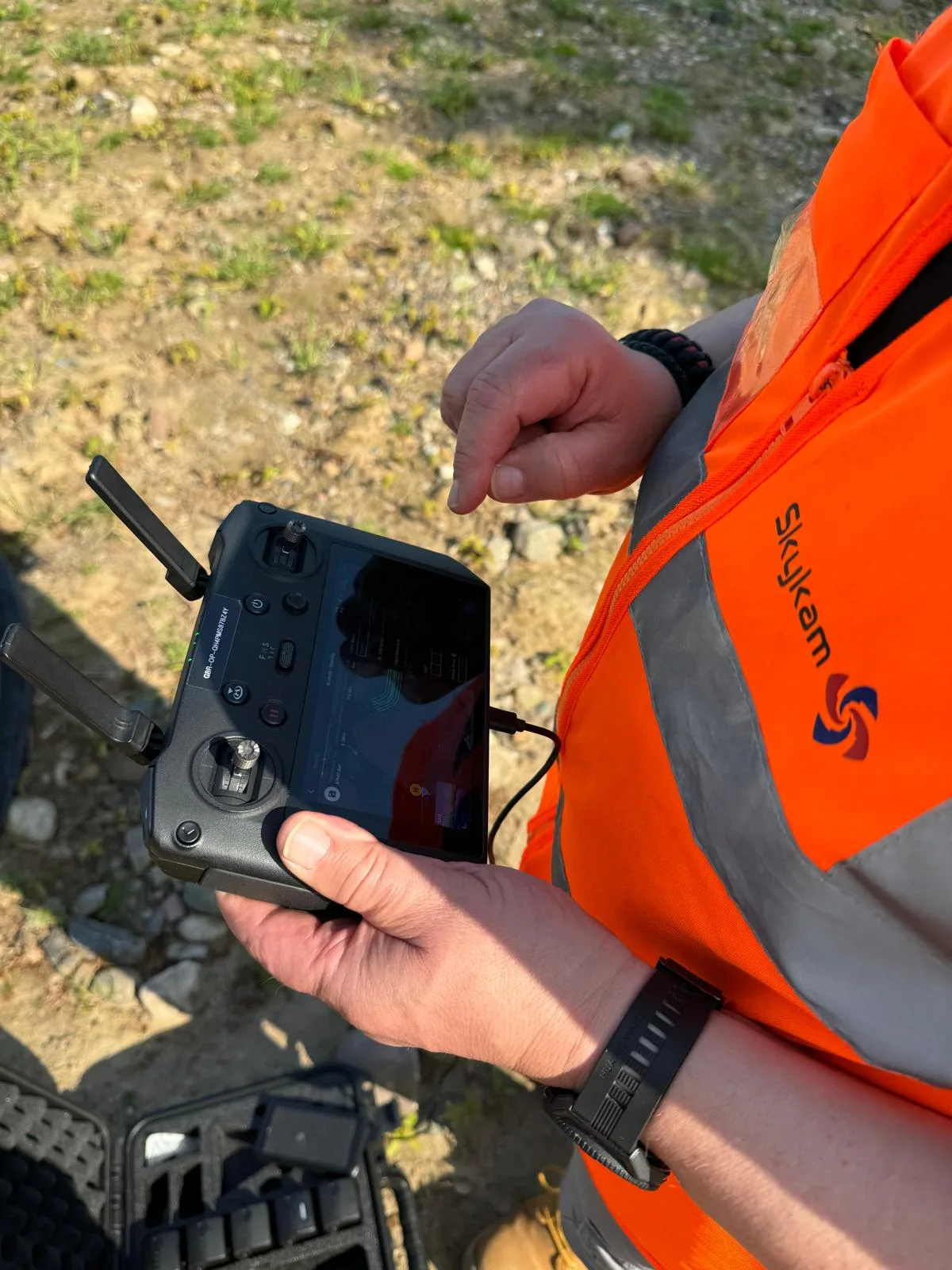
Next, you’ll need a compatible remote controller. The DJI Mini 4 Pro works with two options: the DJI RC 2 or the DJI RC-N2. Both controllers offer excellent performance and ease of use, so choose the one that best fits your preferences and budget.
In addition to the hardware, you’ll need to install the DJI Fly app on your mobile device. This app serves as the control center for your drone and live streaming operations. It’s available for both iOS and Android devices, so make sure you download the correct version for your smartphone or tablet.
Lastly, you’ll need a platform to host your live stream. YouTube is a popular choice, but any platform that supports RTMP (Real-Time Messaging Protocol) will work.
If you don’t already have an account on your chosen platform, you’ll need to create one before you can start streaming.
Initial Setup
Before you can start live streaming, you’ll need to complete a few crucial setup steps for your DJI Mini 4 Pro. These initial preparations will ensure a smooth and successful streaming experience.
First, make sure all your batteries are fully charged. This includes the drone’s battery and the remote controller’s battery. A full charge will give you the maximum flight time and prevent any interruptions during your live stream.
Next, it’s essential to update your drone and remote controller to the latest firmware. DJI regularly releases updates that can improve performance, add new features, and fix potential bugs. To do this, connect your drone and remote controller to the DJI Fly app and follow the prompts for any available updates.
Once your equipment is charged and updated, connect your mobile device to the remote controller. This connection allows you to control the drone and manage your live stream through the DJI Fly app.
Ensure your mobile device has a stable internet connection, as this will be crucial for streaming.
Launch the DJI Fly app on your connected mobile device. Familiarize yourself with the app’s interface, especially the live streaming options. Take some time to explore the settings and features related to streaming, such as resolution, bitrate, and platform selection.
Configure Streaming Settings
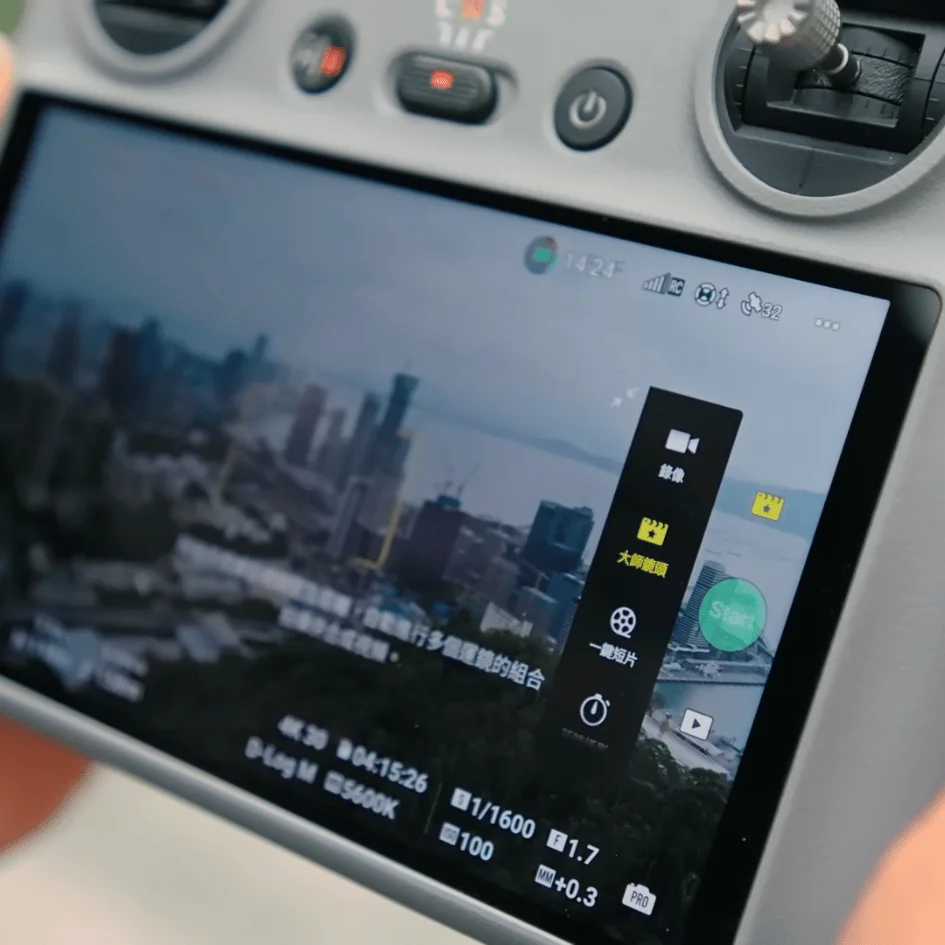
Configuring your streaming settings is crucial for a successful live broadcast from your DJI Mini 4 Pro.
To get started, you’ll need to access the DJI Fly app on your mobile device.
- Once you’ve opened the app, navigate to the settings menu and locate the ‘Transmission’ tab.
- Within the ‘Transmission’ tab, you’ll find an option called ‘Live Streaming Platforms.’
- Tap on this to reveal a list of available protocols.
- For most streaming purposes, you’ll want to select RTMP (Real-Time Messaging Protocol) as your preferred method.
- After choosing RTMP, you’ll need to input the necessary streaming information.
- This includes the RTMP address and stream key, which are unique identifiers provided by your chosen streaming platform.
- If you’re planning to stream on YouTube, for example, you can find these details in the YouTube Live Control Room.
- To set up your stream, copy the URL and stream key from your platform’s dashboard and paste them into the corresponding fields in the DJI Fly app.
- It’s important to double-check this information to ensure it’s entered correctly, as any errors will prevent your stream from connecting properly.

Resolution and Bitrate
When setting up your live stream, you’ll need to consider the resolution and bitrate options available for your DJI Mini 4 Pro. These settings can significantly impact the quality of your stream and your viewers’ experience.
If you’re using the DJI RC 2 controller, you’ll be limited to a maximum streaming resolution of 720p. This limitation is due to processing constraints within the controller itself. While 720p may not be the highest resolution available, it can still provide a clear and enjoyable viewing experience for your audience, especially on smaller screens like smartphones.
On the other hand, if you’re using the DJI RC-N2 controller, you have the potential to stream at a higher resolution of 1080p.
However, this higher resolution comes with a caveat: you’ll need a fast and stable internet connection to support it. If your internet speed isn’t up to par, you might experience lag, buffering, or reduced video quality during your stream.
When choosing your resolution and bitrate settings, consider your internet connection speed, the type of content you’re streaming, and your target audience’s viewing devices. If you’re streaming fast-moving scenes or detailed landscapes, a higher resolution and bitrate can help capture more detail.
However, if you’re streaming in an area with limited internet connectivity, opting for a lower resolution and bitrate can help ensure a smoother streaming experience.
Start Streaming
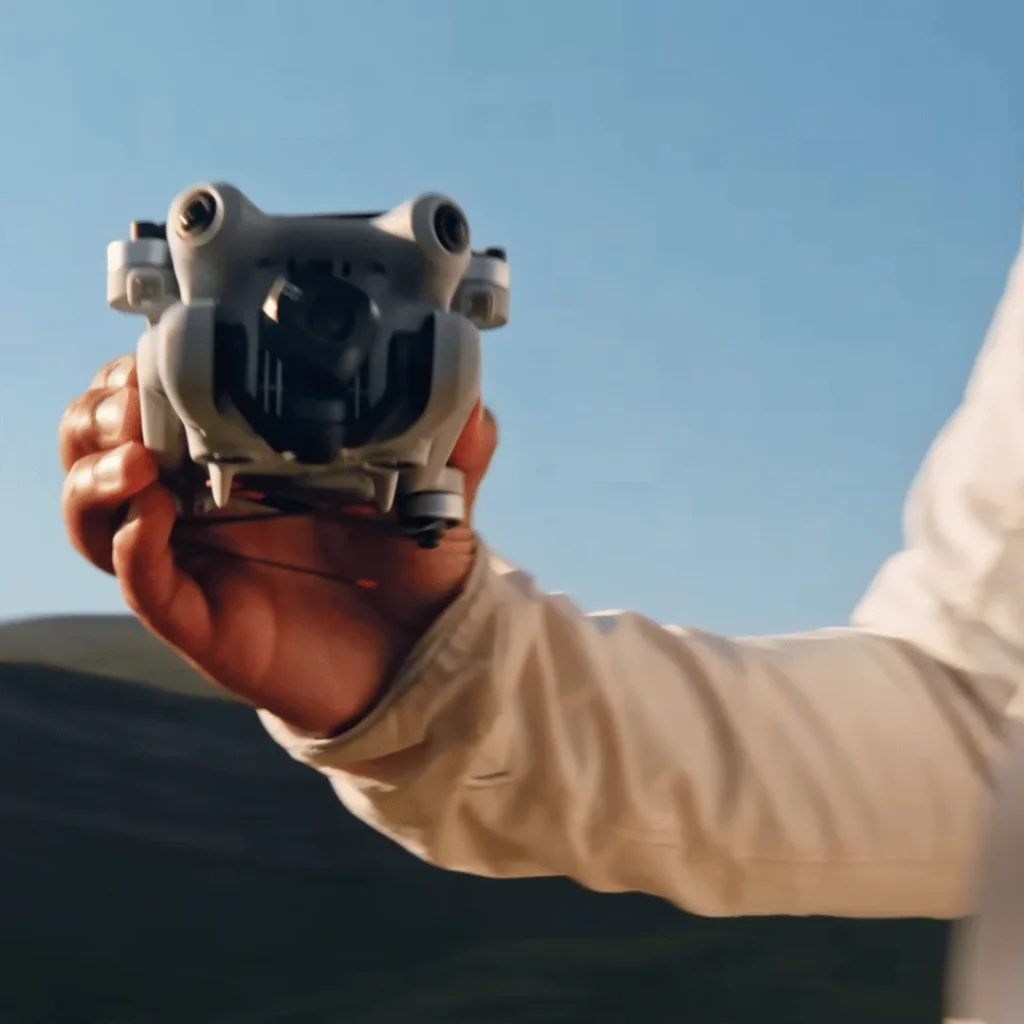
You’re now ready to take your DJI Mini 4 Pro live and share your aerial adventures with the world. With your settings configured and your resolution and bitrate chosen, it’s time to initiate your live stream.
Locate the ‘Start’ button in your streaming interface and press it to begin the process.
As you hit ‘Start,’ you’ll notice a countdown appear on your screen.
This countdown serves as a brief buffer, giving you a moment to prepare and ensure everything is in order before your stream goes live. It’s a great opportunity to double-check your drone’s position, camera angle, and any other last-minute adjustments you want to make.
Once the countdown concludes, keep an eye out for a notification confirming that your stream is now live.
This confirmation is crucial, as it signals that your footage is being broadcast to your chosen platform and audience. At this point, your DJI Mini 4 Pro is actively transmitting your aerial perspective to viewers in real-time.
Monitoring and Troubleshooting
Once your stream is live, it’s time to shift your focus to maintaining a smooth broadcast and addressing any potential issues that may arise.
Keep a close eye on these indicators to ensure your stream doesn’t abruptly end due to a depleted battery or loss of connection.
If you encounter problems during your live stream, such as freezing or lag, don’t panic. First, check your internet connection. If your connection is weak or unstable, try moving to a different location or switching to a more reliable network.
Should the issues persist, consider adjusting your stream settings. However, be aware that lowering the bitrate may also affect the video quality.
Remember to stay within legal and safe flying limits while streaming. Be mindful of your surroundings and any potential obstacles that could interfere with your drone’s signal or flight path.
If you experience persistent technical difficulties, it may be necessary to end the stream and troubleshoot offline. Don’t hesitate to do this if needed, as it’s better to deliver a high-quality stream later than to continue with a problematic broadcast.

Ending the Stream
Your stream’s conclusion is just as important as its beginning, so it’s crucial to know how to properly end your broadcast.
When you’re ready to wrap up your live stream from your DJI Mini 4 Pro, you’ll need to follow a simple but specific process to ensure a smooth finish.
To end your live stream, you’ll need to interact with the DJI Fly app, which you’ve been using to manage your broadcast.
Look for a notification within the app that’s related to your ongoing stream. This notification serves as your control center for the live broadcast.
Once you’ve located the notification, you’ll need to tap on it.
This action will bring up options related to your stream. Among these options, you’ll find a way to end the broadcast. However, it’s important to note that you won’t be able to stop the stream with just a single tap.
After tapping the notification, the app will ask you to confirm that you want to end the stream.
This two-step process helps prevent accidental terminations of your broadcast. When prompted, confirm your intention to end the stream. This final confirmation will effectively close your live broadcast.
Conclusion
You’ve now learned the essentials of live streaming from your DJI Mini 4 Pro. Remember to always check your equipment and settings before going live.
Don’t forget to monitor your stream quality and address any issues promptly. With practice, you’ll become more comfortable with the process.
Keep exploring new ways to engage your audience and improve your streams.

