

To reset your DJI Mini 4 Pro, you have two main options: ‘Reset All Settings’ or ‘Clear All Data’ (factory reset). For a full factory reset, open the DJI Fly app, go to ‘About’ in the settings, and select ‘Clear All Data.’ Confirm your choice to initiate the process.

Make sure both your drone and controller are fully charged before resetting. If you’re only resetting the controller connection, power on both devices and follow the prompts in the DJI Fly app.
Always back up important data before resetting. Understanding when and how to reset can help you maintain optimal drone performance and resolve various issues.
Types of Resets
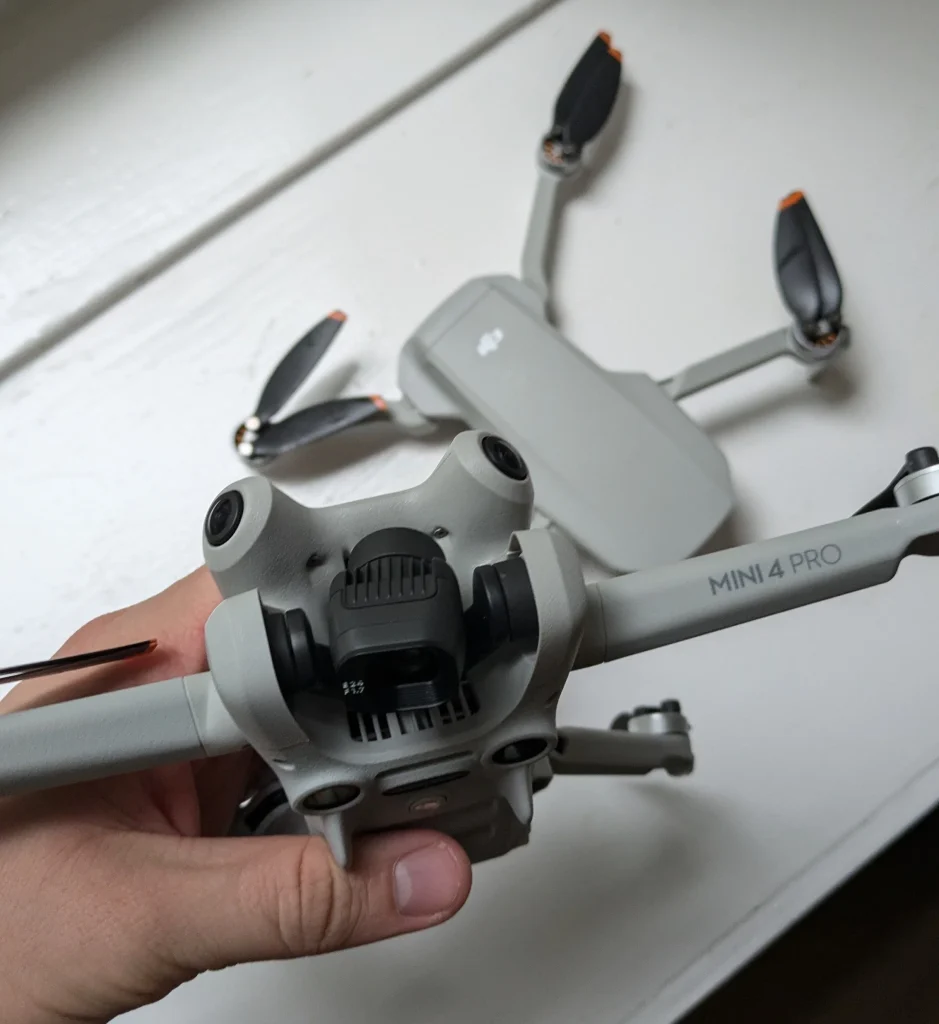
There are two primary types of resets you can perform on your DJI Mini 4 Pro: ‘Reset All Settings’ and ‘Clear All Data. Each of these resets serves a different purpose and has distinct outcomes for your drone.
When you choose to ‘Reset All Settings’, you’re essentially restoring your DJI Mini 4 Pro to its default configuration.
This option doesn’t erase your personal data or media files. Instead, it reverts all customized settings back to their original state. This can be helpful if you’ve made changes to your drone’s settings and want to start fresh without losing your captured footage or other personal information.
On the other hand, ‘Clear All Data’, also known as a Factory Reset, is a more comprehensive reset option. When you select this, you’re wiping all user data from your drone and restoring it to its original factory state.
This means all your settings, personal information, and stored media will be erased. It’s as if you’ve just unboxed your DJI Mini 4 Pro for the first time.
Choosing between these two reset options depends on your specific needs.
If you’re experiencing issues with your drone’s performance or want to reconfigure your settings from scratch, ‘Reset All Settings’ might be sufficient. However, if you’re planning to sell your drone, troubleshoot persistent problems, or want a completely fresh start, ‘Clear All Data’ is the more appropriate choice.
Factory Reset Process
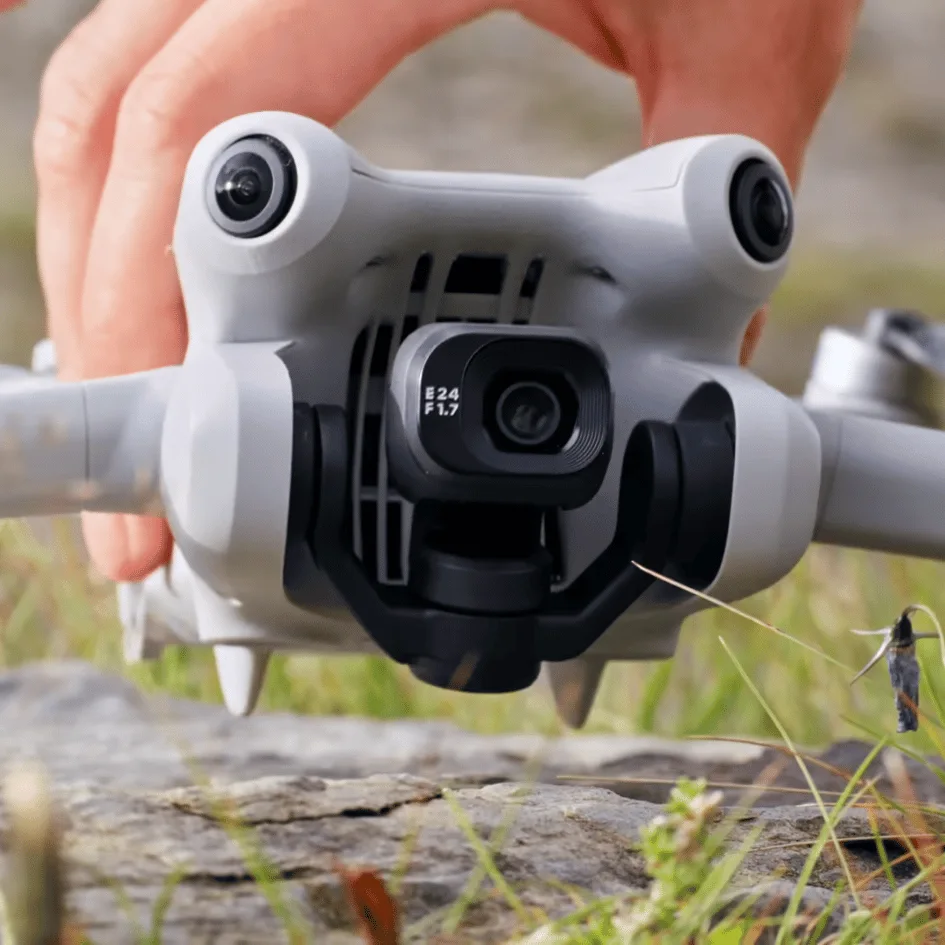
To begin, you’ll need to open the DJI Fly app on your mobile device.
Once the app is running, look for the three dots icon in the upper right corner of the screen and tap it to access additional options.
- From the menu that appears, navigate to the ‘About’ section.
- Here, you’ll find various information about your drone and app settings.
- Scroll down until you see the ‘Clear All Data’ option.
- This is the key to initiating the factory reset process.
- When you select ‘Clear All Data’, the app will ask you to confirm your action.
- It’s crucial to understand that this step will erase all customized settings and return your DJI Mini 4 Pro to its original factory state.
- If you’re sure you want to proceed, confirm the action.
- The reset process will then begin.
- Be patient and allow it to complete without interruption.
- Once finished, you’ll need to restart your aircraft to ensure all changes take effect.
While performing a factory reset on your DJI Mini 4 Pro might seem daunting, the process is straightforward if you follow these steps carefully.
Resetting Controller Connection
After completing a factory reset, you’ll likely need to reestablish the connection between your DJI Mini 4 Pro and its remote controller.
This process, known as resetting the controller connection, is crucial for ensuring smooth communication between your drone and its control device.
To begin, power on both your DJI Mini 4 Pro and the remote controller.
It’s important to ensure that both devices have sufficient battery charge before proceeding.
Once they’re powered up, open the DJI Fly app on your mobile device.
This app serves as the interface for many DJI drone operations, including the reconnection process.
As you launch the app, you’ll notice on-screen prompts guiding you through the rebinding procedure.
Follow these instructions carefully, as they’re designed to walk you through each step of reconnecting your aircraft and remote controller.
The app will likely ask you to confirm certain actions or wait for specific indicators, so pay close attention to the prompts.
This process isn’t just useful after a factory reset.
You might find yourself needing to reset the controller connection if you’re experiencing persistent connectivity issues with your DJI Mini 4 Pro.
Precautions Before Resetting
Three crucial precautions you should take before resetting your DJI Mini 4 Pro can save you time and frustration.
First and foremost, back up all your important files and data. This step is critical because resetting your drone will erase all internal storage data, including flight logs and user settings. By creating a backup, you’ll ensure that you don’t lose any valuable information or customized configurations that you’ve spent time perfecting.
Secondly, make sure both your aircraft and remote controller are fully charged. A reset process can take some time, and you don’t want either device to run out of power midway through.
This precaution will help ensure a smooth and uninterrupted reset experience, allowing you to complete the process without any hiccups.
Lastly, be fully aware of what you’re about to do. Clearing all data means exactly that – all your internal storage data, flight logs, and user settings will be wiped clean.
This isn’t a decision to be taken lightly. Consider whether a reset is absolutely necessary, and if there are any specific settings or data you might need to note down or save separately before proceeding.
Common Scenarios Requiring Reset
Several common scenarios might prompt you to reset your DJI Mini 4 Pro. Understanding these situations can help you decide when a reset is necessary and potentially save you time and frustration.
One of the most frequent reasons for resetting your drone is persistent software glitches or erratic behavior. If you’re experiencing unexplained issues with your Mini 4 Pro’s performance, a reset can often clear out any corrupted data or settings that may be causing the problem.
Connection issues between your drone and controller are another common scenario that might require a reset. If you’re having trouble establishing or maintaining a stable connection, resetting both devices can help resolve communication problems and ensure smooth operation.
You’ll also want to reset your DJI Mini 4 Pro when preparing it for sale or transferring ownership. This process clears out your personal data and returns the drone to its factory settings, ensuring the new owner starts with a clean slate.
While compass calibration issues can often be resolved with a simple restart, sometimes a full reset is necessary to completely clear any persistent calibration problems. This can help ensure accurate flight performance and navigation.
In all these scenarios, a reset can be an effective troubleshooting step. It helps clear out potentially corrupted settings or data, restoring your DJI Mini 4 Pro to a known good state. By doing so, you’re giving your drone a fresh start, which can often resolve a wide range of issues and improve overall performance.
Conclusion
You’ve now learned how to reset your DJI Mini 4 Pro in various scenarios. Remember to back up important data before performing a factory reset.
Always follow the proper steps for your specific reset type, and don’t hesitate to reset your drone if you’re experiencing persistent issues.
With these skills, you’ll be able to troubleshoot and maintain your Mini 4 Pro effectively, ensuring smooth flights and optimal performance for your aerial adventures.

