

To turn on your DJI Mini 4 Pro, first ensure the Intelligent Flight Battery is fully charged and properly inserted. Press the power button once, then press and hold it for two seconds to turn on. You’ll see LED indicators showing the battery power level. Next, power on the remote controller using the same button-press method.
If you’re using the RC-N2, connect your mobile device and launch the DJI Fly app.
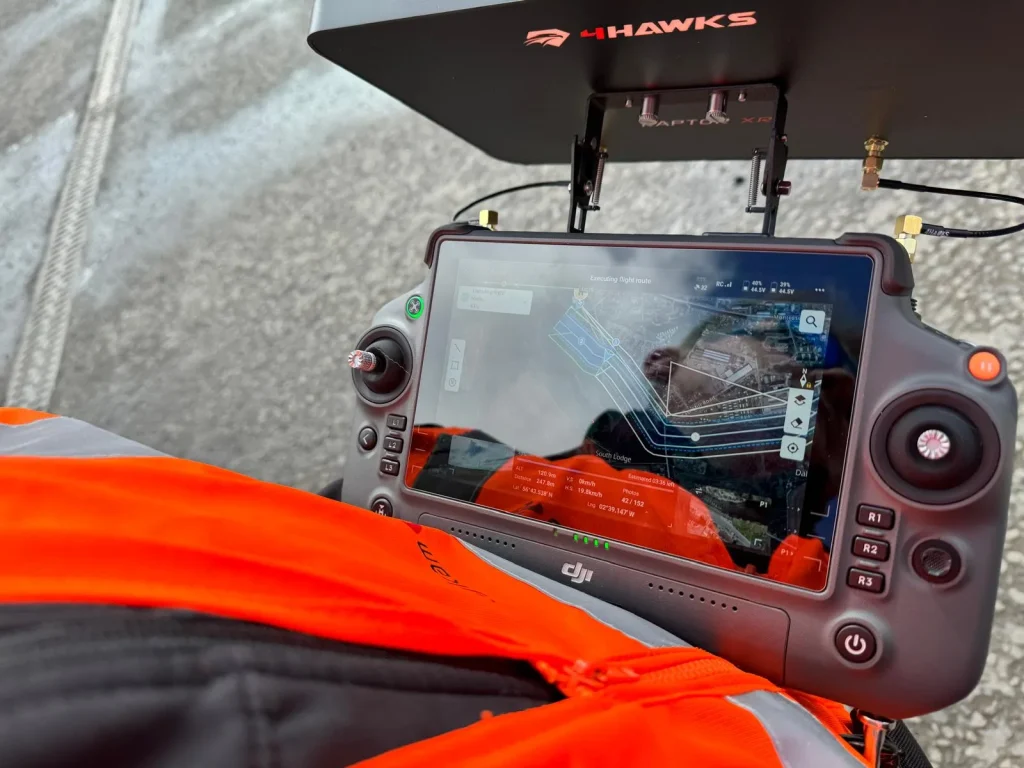
For first-time use, you’ll need to activate the drone and controller through the app, which requires an internet connection. Once activated, bind the drone to the controller by following the on-screen instructions.
Proper preparation ensures a smooth takeoff and flight experience.
Preparing Your DJI Mini 4 Pro
Before powering on your DJI Mini 4 Pro, you’ll need to prepare it for flight.
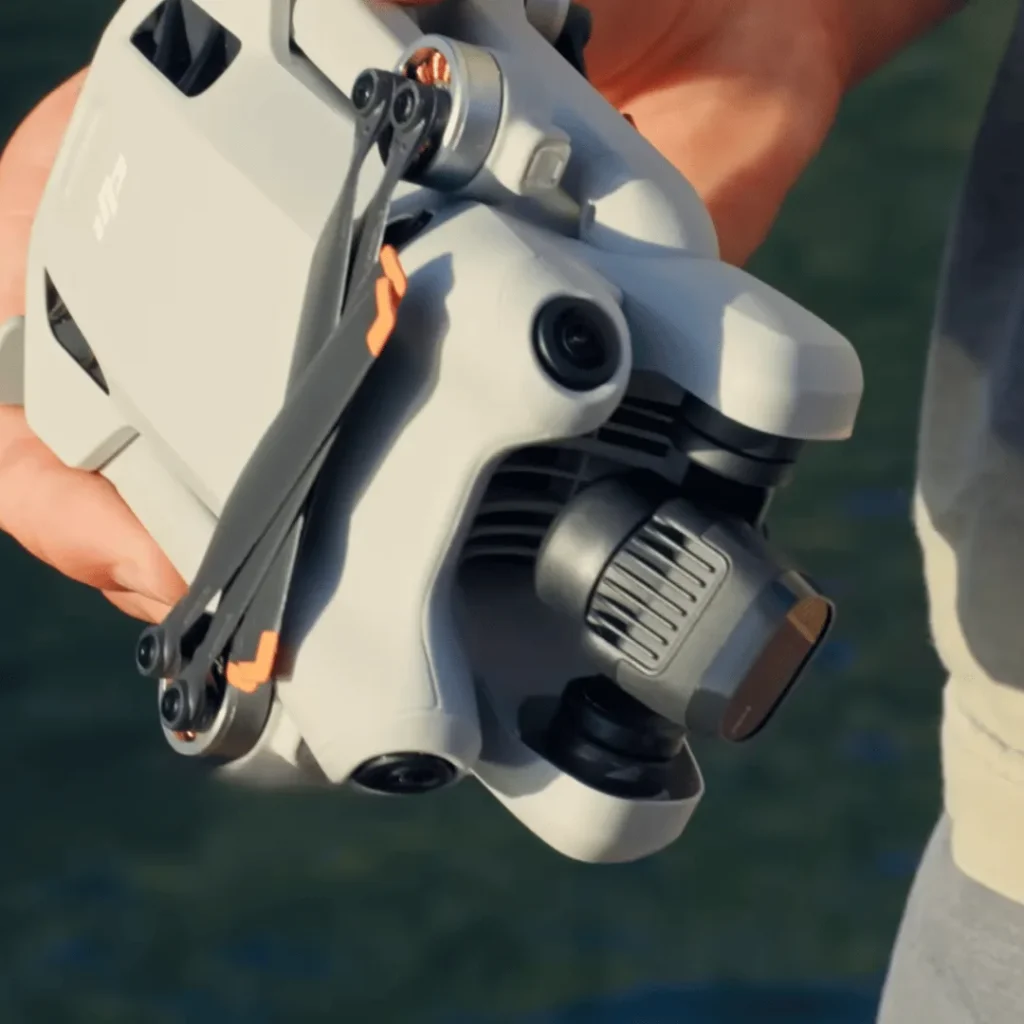
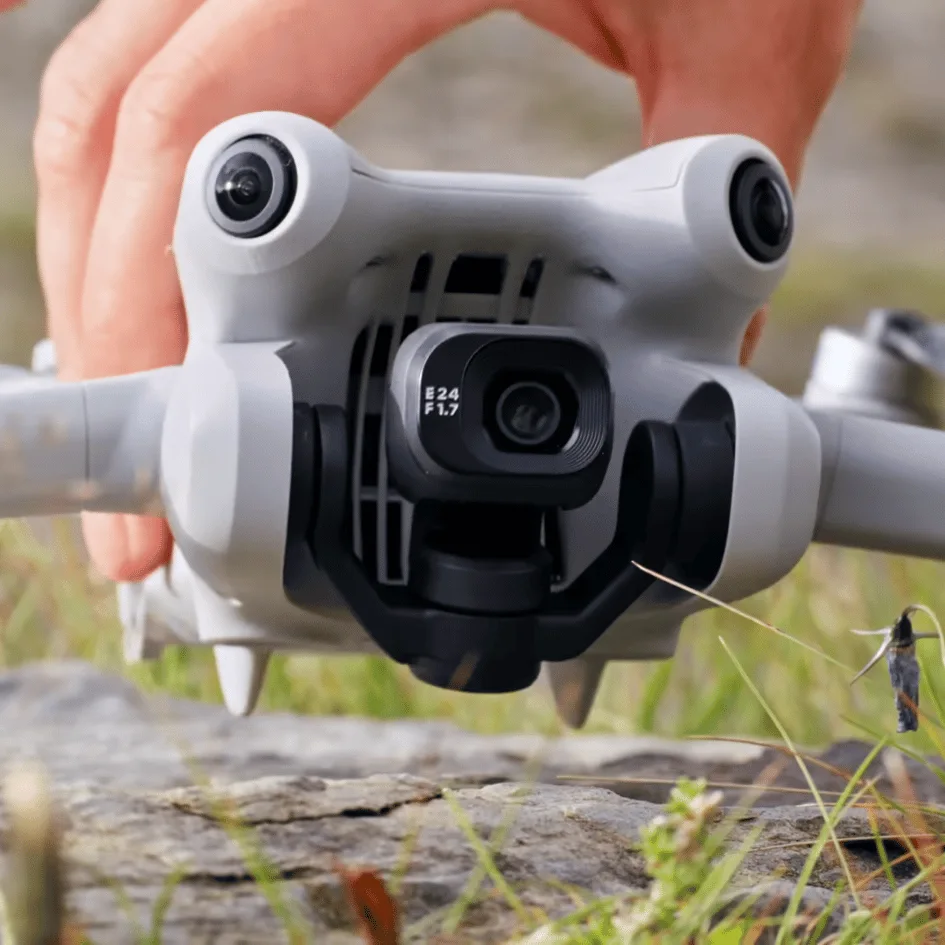
Start by removing the gimbal protector from the camera. This small piece of plastic safeguards your drone’s delicate camera during transport, but it must be taken off before flying.
Next, unfold the drone’s arms. They’re designed to fold neatly for storage, but they need to be fully extended for proper flight.
Now, it’s time to insert the battery. Make sure you’re using a fully charged Intelligent Flight Battery. Slide it into the designated compartment on the back of the drone until you hear a click. This ensures it’s securely in place.
If you’re using the drone for the first time, you’ll need to activate the battery. Connect the drone to a power source using the USB-C port on the aircraft. This initial charging process also activates the battery for use.
Lastly, prepare your remote controller. If you’re using the RC-N2, connect your mobile device and launch the DJI Fly app. For the DJI RC 2, you’ll just need to power it on.
With these steps completed, you’re ready to turn on your Mini 4 Pro.

Powering On the Drone
With your DJI Mini 4 Pro prepped and ready, it’s time to power up your drone. Start by inserting a fully charged Intelligent Flight Battery into the aircraft.
Once it’s securely in place, press the power button once, then press and hold it for about two seconds.
You’ll see LED indicators light up, showing the battery’s power level. Next, turn on your remote controller.
Whether you’re using the DJI RC 2 or RC-N2, the process is similar. Press the power button once, then press and hold it for two seconds.
You’ll hear an ascending tone, and either see the DJI splash screen (RC 2) or LED lights indicating battery charge (RC-N2). If you’re using the RC-N2, connect your mobile device and launch the DJI Fly app.
For first-time use, you’ll need to activate your drone through the app. Follow the on-screen prompts and ensure you have an internet connection for this step.
Activating the Remote Controller
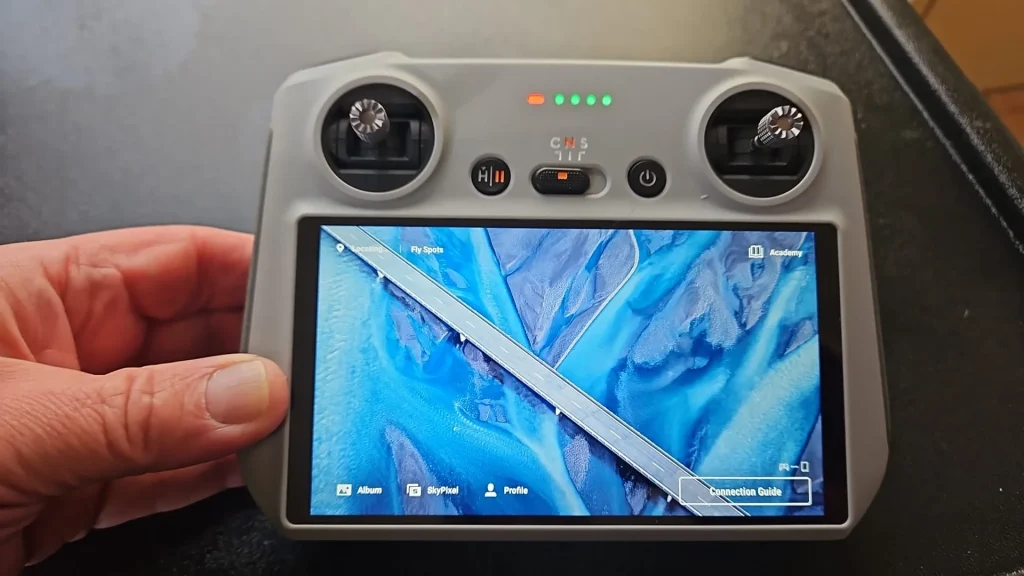
Once you’ve powered on your remote controller, it’s time to activate it for use with your DJI Mini 4 Pro. The activation process is straightforward and ensures your controller is ready to communicate with your drone.
First, make sure your remote controller is fully charged.
If you’re using the DJI RC 2, you’ll see the DJI splash screen after powering on. For the RC-N2, you’ll need to connect your mobile device and launch the DJI Fly app.
Follow the on-screen prompts in the DJI Fly app to activate your controller.
You’ll need an internet connection for this step. The app will guide you through setting up your controller preferences and linking it to your DJI account.
If it’s your first time using the drone, you may need to bind the controller to your Mini 4 Pro.
The app will provide instructions for this process, which usually involves pressing specific button combinations on both devices.
Once activated, your controller will be ready to use.
You can now adjust settings, calibrate the sticks, and customize button functions to suit your flying style. Remember to keep your controller’s firmware updated for optimal performance and compatibility with your drone.

Connecting Mobile Device and App
Connecting your mobile device and launching the DJI Fly app is crucial for controlling your DJI Mini 4 Pro and accessing its full range of features.
If you’re using the DJI RC 2 controller, you won’t need to connect a mobile device as it has a built-in screen.
First, ensure your mobile device has the latest version of the DJI Fly app installed.
- Open the app and sign in to your DJI account.
- For the RC-N2 controller, you’ll need to follow these steps:
- Next, unfold the mobile device clamp on the RC-N2 controller and adjust it to fit your phone securely.
- Connect your mobile device to the controller using the appropriate cable.
- For iPhones, use the Lightning cable, and for Android devices, use the USB-C or Micro-USB cable provided.
- Once connected, the DJI Fly app should automatically detect your drone.
- If it doesn’t, check your cable connection and restart the app.
- When prompted, allow the app to access your device’s location and camera.
- You’ll then see the camera view from your drone, indicating a successful connection.
You’re now ready to explore the app’s features and prepare for flight.
First-Time Activation Process
After connecting your mobile device, you’ll need to activate your DJI Mini 4 Pro before its first flight.
First, launch the DJI Fly app on your connected device. Make sure you have an active internet connection, as it’s required for activation.
You’ll be asked to create or log into your DJI account if you haven’t already.
Next, the app will check for any available firmware updates for your drone and remote controller. It’s crucial to install these updates to ensure optimal performance and access to the latest features. Follow the instructions carefully and don’t interrupt the update process.
During activation, you’ll need to agree to DJI’s terms and conditions. You may also be prompted to set up your preferences for things like units of measurement and max flight altitude.
Once you’ve completed these steps, your DJI Mini 4 Pro will be activated and ready for flight.
Binding Drone to Remote Controller
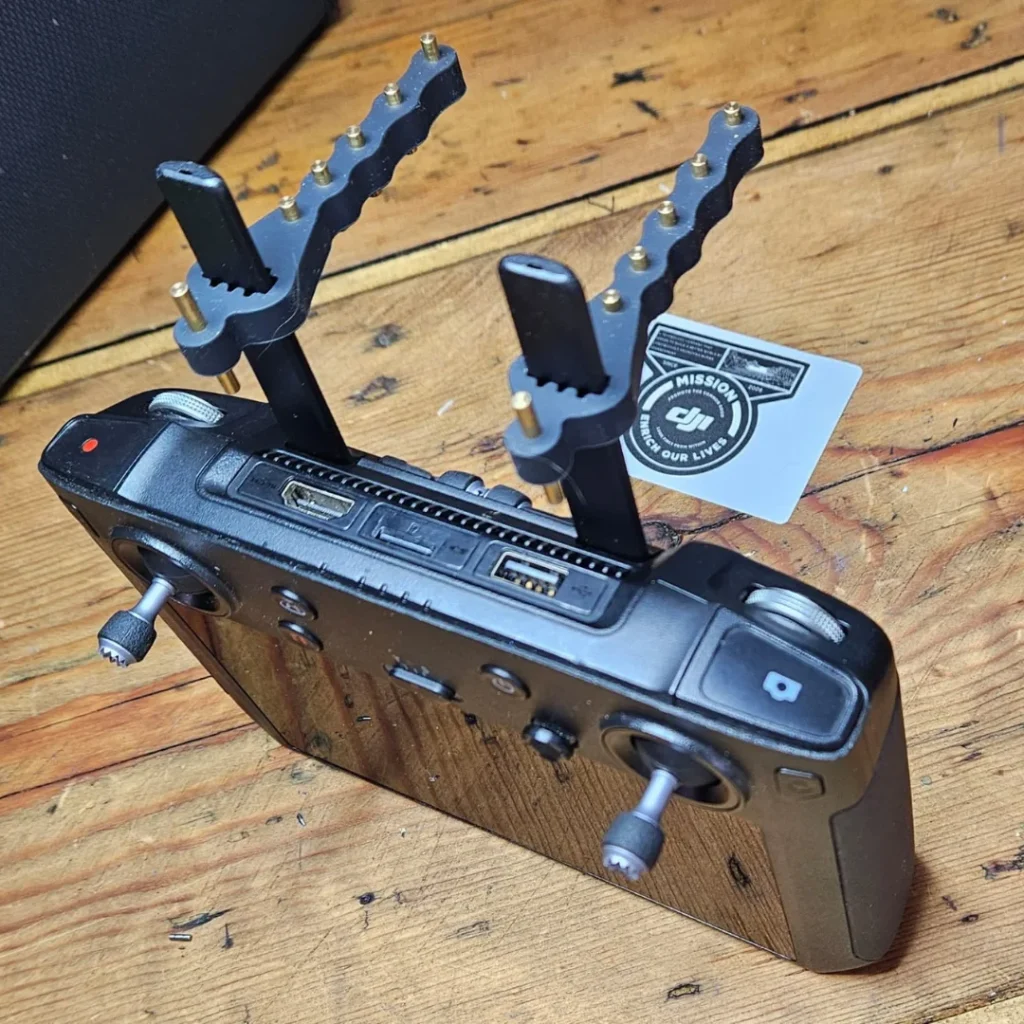
Syncing your DJI Mini 4 Pro with its remote controller is a crucial step in preparing for flight. If your drone doesn’t automatically bind to the controller, don’t worry. You can easily complete the process manually.
First, ensure both your drone and remote controller are powered on.
Open the DJI Fly app on your mobile device if you’re using the RC-N2 controller. For the DJI RC 2, you’ll use its built-in screen. Navigate to the camera view in the app or on the controller’s display.
Look for the binding option in the settings menu. Tap on it to initiate the binding process. You’ll see instructions on the screen. Press and hold the power button on your drone for about four seconds until you hear a series of beeps. This indicates the drone has entered binding mode.
The app or controller screen will confirm when the binding is successful. If it fails, simply repeat the process. Remember, you only need to do this once, as your drone and controller will remain paired for future flights.
Once bound, you’re ready to take to the skies with your DJI Mini 4 Pro!
Troubleshooting Power-On Issues
While binding your drone is important, you might encounter issues when trying to power on your DJI Mini 4 Pro. If your drone doesn’t turn on, don’t panic.
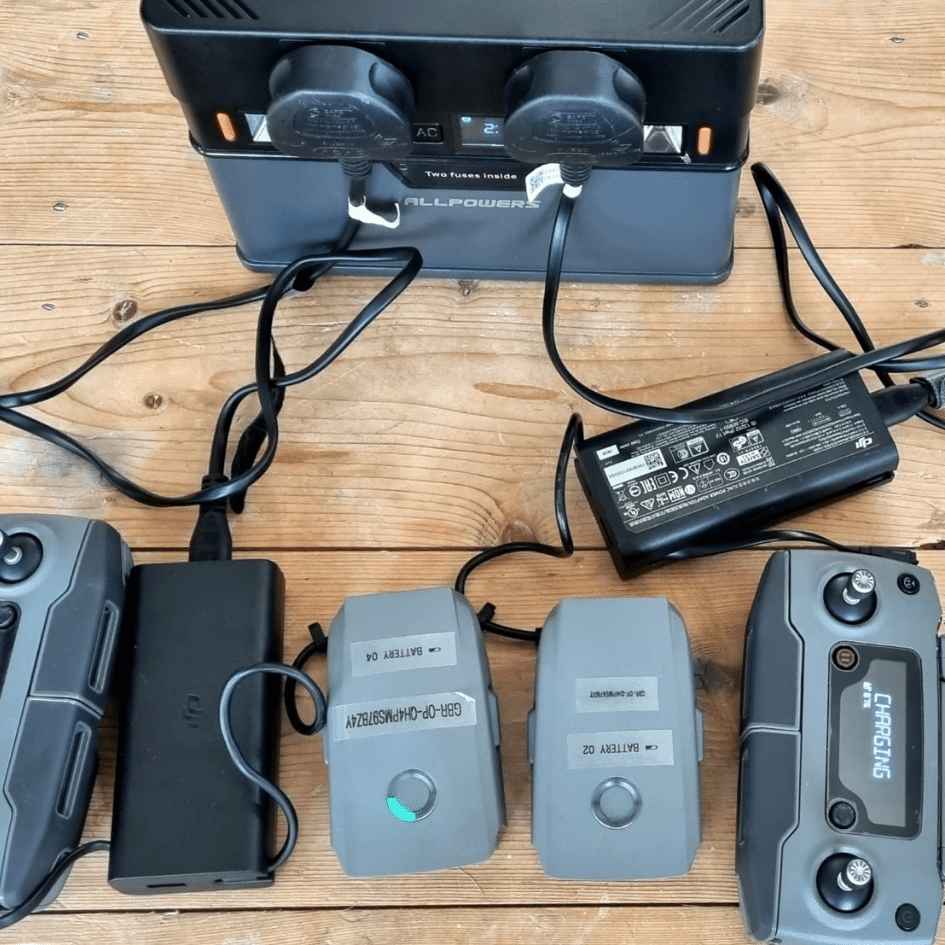
First, check the battery. Make sure it’s fully charged and properly inserted.
If that’s not the issue, try pressing the power button once, then holding it for about two seconds.
Inspect your drone for any visible damage, especially around the battery compartment and power button. Clean the battery contacts with a soft, dry cloth.
If you have multiple batteries, try using a different one to rule out a faulty battery.
Next, connect your drone to the DJI Fly app and check for firmware updates. Sometimes, outdated software can cause power issues.
If all else fails, try resetting your drone by removing the battery, waiting a few minutes, then reinserting it.
If these steps don’t work, you might be dealing with an internal issue. In this case, it’s best to contact DJI support or an authorized repair center. They can provide more specialized help or arrange for repairs if necessary.
Conclusion
You’ve now learned how to turn on your DJI Mini 4 Pro and prepare it for flight.
Remember to always follow the correct power-up sequence for both the drone and remote controller.
If you encounter any issues, refer to the troubleshooting section or consult the user manual.
With practice, powering on your drone will become second nature.
Keep your batteries charged, stay updated on local regulations, and you’ll be ready to capture amazing aerial footage in no time.

